Connection Types & Ports
Before building flows, you must understand the visual language of the graph. Every color, shape, and line style communicates data flow and execution behavior.
The legend shown here is also available in the Flow Editor (right-side panel). mouse hover anywhere in the legend to see detailed tooltips.
🧬 Node Types
A node's header color indicates its execution pattern.

Execution Patterns
| Color | Type | Behavior | Use Case |
|---|---|---|---|
| 🔴 Red | Root Node | Entry Point - Fires when event is raised externally | Game start, player input, collision detection |
| 🟠 Orange | Trigger Node | Parallel (Fan-Out) - Fires and immediately continues (non-blocking) | Sound + VFX + UI updates happening simultaneously |
| 🟢 Green | Chain Node | Sequential (Blocking) - Fires and waits before continuing | Cutscenes, delayed actions, async operations |
Root Node Rules
One Per Graph: Each graph has exactly one root node.
Set Root: Right-click any node to Set as Root to change entry point.
Visual: Red header gradient makes it instantly recognizable.
Trigger vs Chain
Trigger Pattern (Parallel):
All executed in parallel together!
Chain Pattern (Sequential):
Each waits for the previous to finish!
🔌 Port Types (Data Signatures)
Port colors indicate the C# event signature and data payload.

Port Color Meanings
| Color | Signature | Description | Example Events |
|---|---|---|---|
| 🔵 Cyan | () | Void - No data passed | OnGameStart, OnButtonClick |
| 🌸 Pink | <T> | Single Argument - One data payload | OnScoreChanged(int), OnDamage(DamageInfo) |
| 💜 Purple | <TSender, TArgs> | Dual Arguments - Sender + Payload | OnPlayerDamaged(GameObject, DamageInfo) |
Port Anatomy
- Left Port (Input): Receives data from previous node.
- Right Port (Output): Sends data to next node.
🔗 Connection Compatibility
The system provides real-time type safety when creating connections.
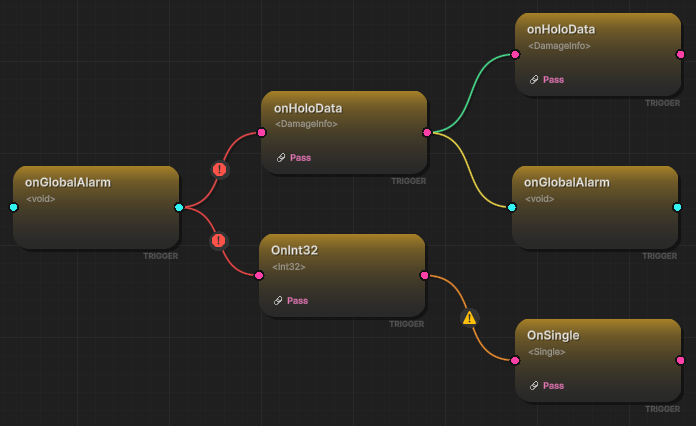
Compatibility Levels
| Color | Status | Meaning | Impact |
|---|---|---|---|
| 🟢 Green | Perfect Match | Types match exactly | Zero overhead, no conversion |
| 🟡 Yellow | Compatible | Safe operation with data discard | Arguments ignored, no errors |
| 🟠 Orange | Warning | Type conversion required | Auto-converts (e.g., int → float) |
| 🔴 Red | Incompatible | Will fail at runtime | Connection blocked |
Visual Feedback
While Dragging:
- Preview line shows compatibility color
- Invalid targets appear dimmed
- Valid targets highlight
After Connection:
- Line color persists
- Warning icon (⚠️) appears for Orange/Red
- Hover for detailed tooltip
📊 Compatibility Matrix
Connection color is determined by Source Type, Target Type, and Pass Argument setting.
Full Compatibility Table
| Source Event | Target Event | Pass Argument | Result | Explanation |
|---|---|---|---|---|
| Any | Any | OFF | 🟢 Green | Override: Target ignores all input |
Void () | Void () | ON | 🟢 Green | Perfect match - no data needed |
Void () | <T> | ON | 🔴 Red | Error: Target needs data, source has none |
Void () | <S,T> | ON | 🔴 Red | Error: Target needs sender, source has none |
<T> | Void () | ON | 🟡 Yellow | Safe: Argument discarded |
<T> | <T> | ON | 🟢 Green | Perfect match - same type |
<T> | <S,T> | ON | 🔴 Red | Error: Target needs sender, source has none |
<S,T> | Void () | ON | 🟡 Yellow | Safe: Both sender & arg discarded |
<S,T> | <T> | ON | 🟡 Yellow | Safe: Sender discarded, arg passes |
<S,T> | <S,T> | ON | 🟢 Green | Perfect match - sender + arg |
<T1> | <T2> | ON | 🟠 Orange | Warning: Type conversion (int ↔ float) |
Special Cases
Pass Argument = OFF:
Always results in 🟢 Green connection because target ignores all input data.
Use Case: Chain a typed event to a void event without type errors.
Numeric Conversions:
Auto-converts between compatible numeric types (🟠 Orange):
int↔floatfloat↔doubleint↔long
Warning: May lose precision (e.g., float 3.14 → int 3).
Incompatible Types:
Blocked at connection time (🔴 Red):
string→intGameObject→float- Custom type mismatches
System prevents creation of these connections.
🏷️ Status Badges
Badges appear at the bottom of nodes to show active configuration.
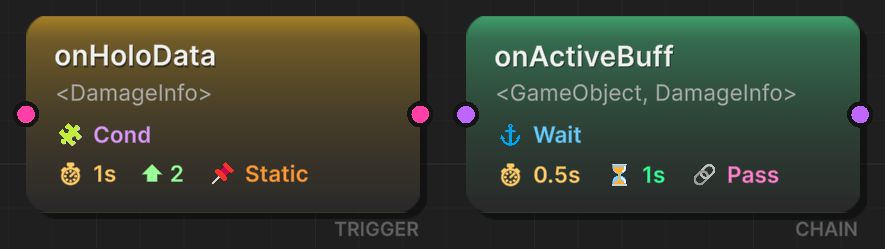
Badge Reference
| Icon | Badge | Meaning | Applies To |
|---|---|---|---|
| 🧩 | Cond | Visual condition tree active | All nodes |
| ⏱️ | 2.5s | Start delay (seconds) | All nodes |
| ⏳ | 3.0s | Blocking duration (seconds) | Chain only |
| ⚓ | Wait | Wait for async completion | Chain only |
| ⬆️ | +5 | Execution priority | Trigger only |
| 🔗 | Pass | Passing arguments to next node | All nodes |
| 📌 | Static | Arguments blocked (static call) | All nodes |
Badge Examples
Chain Node with Delay + Duration:
⏱️ 1.0s   ← Wait 1 second before starting
⏳ 3.0s   ← Then block for 3 seconds
Trigger Node with Condition + Priority:
🧩 Cond   ← Only fires if condition passes
⬆️ +10    ← Executes before other triggers
Any Node with Argument Passing:
🔗 Pass ← Forwards event data to next node
🎨 Visual Examples
Example 1: Perfect Match Chain
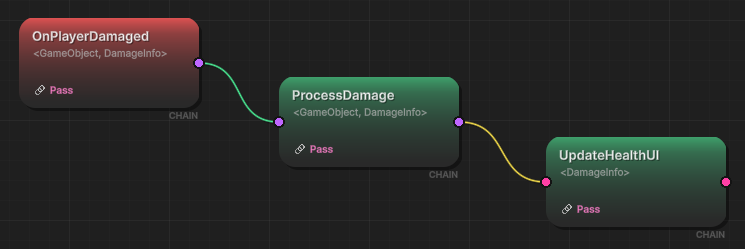
Colors:
- Line 1: 🟢 Green (perfect match)
- Line 2: 🟡 Yellow (sender discarded safely)
Example 2: Type Conversion Warning
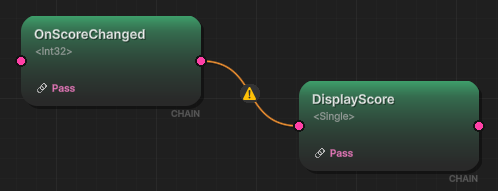
Color: 🟠 Orange (int → float conversion)
Risk: Precision change, but works
Example 3: Pass Argument
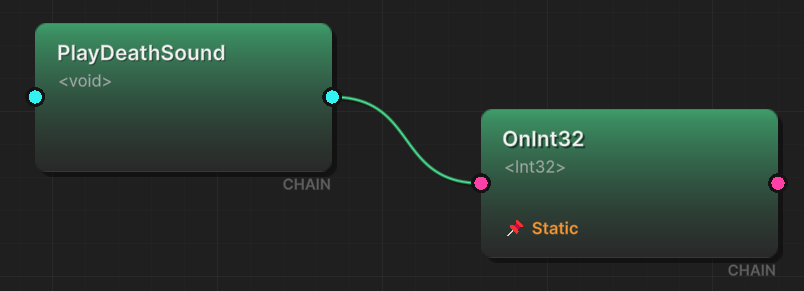
Colors: 🟢 Green (void → int)
No-Blocking: ignore argument to match
Example 4: Parallel Trigger Fan-Out
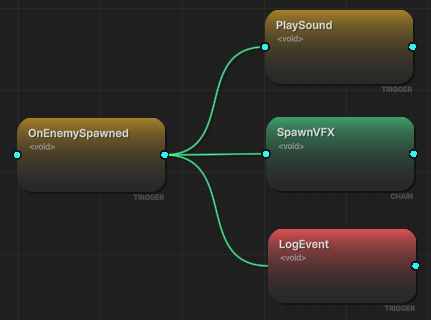
All connections: Green (void → void), executing immediately in parallel
💡 Best Practices
Use Pass Argument Wisely
When to Pass (ON):
- Next node needs the event data
- Building data pipelines
- Forwarding damage info, scores, etc.
When to Block (OFF):
- Connecting incompatible types
- Generic notifications (no data needed)
- Simplifying complex type chains
Color-Code Your Flows
Green-Heavy Graphs: Well-typed.
Yellow Connections: Acceptable when intentionally discarding data.
Orange Lines: Review for correctness—ensure conversions are intentional.
Red Blocks: Fix immediately—will fail at runtime.
Organize by Type
Group similar signature nodes together:
- Void events in one area
- Data events in another
- Async chains separate from triggers
Why: Makes type compatibility easier to visualize.
❓ Common Questions
Why is my connection red?
Cause: Type mismatch that cannot be resolved.
Fix:
- Check if target needs sender but source doesn't provide it
- Disable "Pass Argument" on target node
- Insert intermediate conversion node
Can I connect different numeric types?
Yes: The system auto-converts int, float, double, long.
Result: 🟠 Orange connection with conversion warning.
Caution: Watch for precision loss (float → int).
What does yellow mean?
Meaning: Safe connection with data discard.
Example: Sending <int> to <void> discards the integer.
Safe?: Yes—no runtime errors, just unused data.
While working in the Flow Graph Editor, the Legend Panel (right side) shows all node types, port colors, and connection meanings. Hover over any legend item for detailed tooltips.
🔴 Red connections are blocked during creation to prevent runtime crashes. If you need to connect incompatible types, disable "Pass Argument" on the target node—this forces a 🟢 Green connection by ignoring input data.