Game Event Node Editor
The Node Editor is a visual orchestration tool that solves the "spaghetti code" problem by displaying complex event dependencies in a single, readable graph.
Instead of hunting through scattered scripts to understand why an event fired, you simply look at the flow graph.
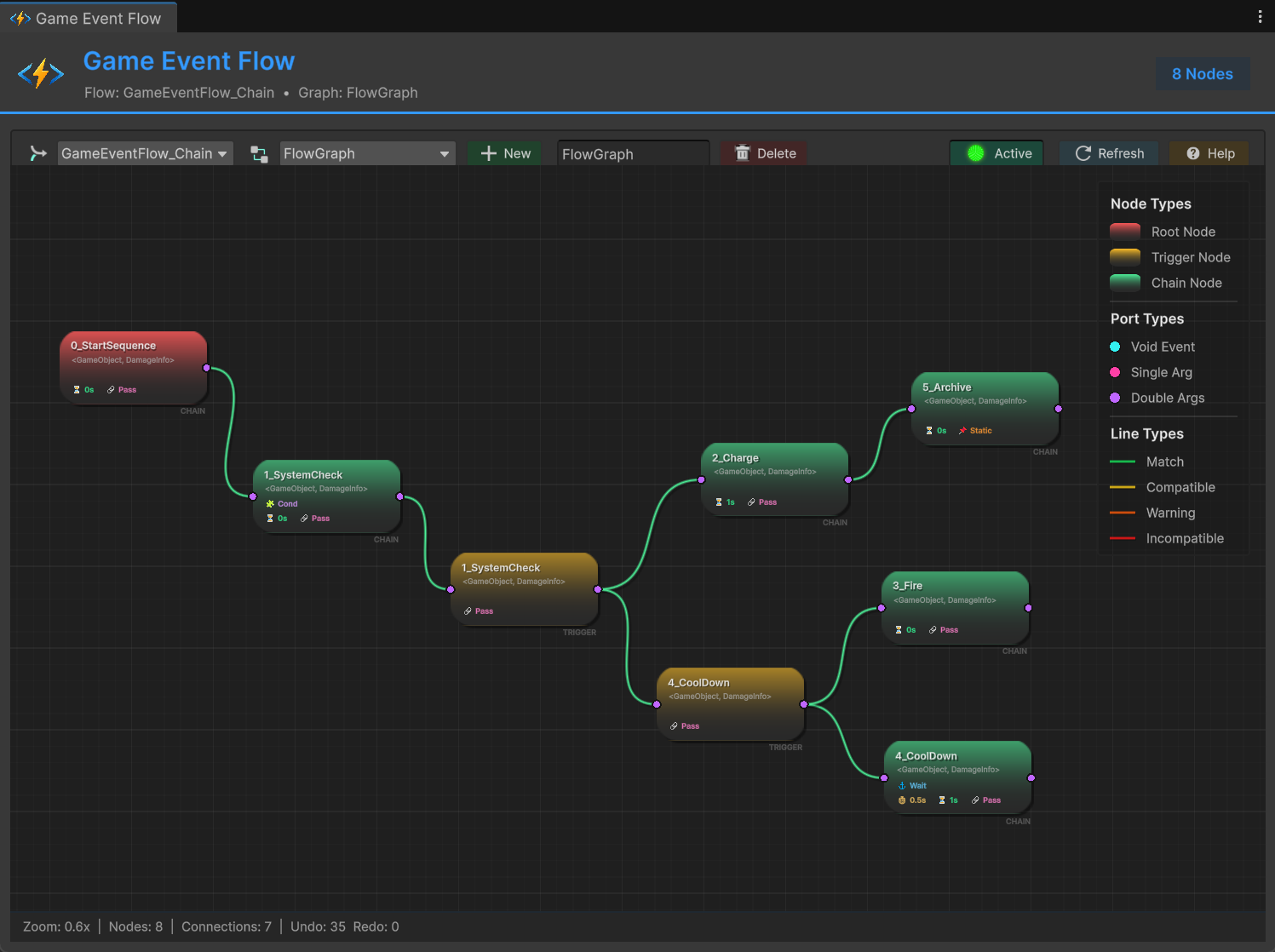
🎯 Design Philosophy
Traditional Unity events are "fire and forget"—great for decoupling, but terrible for debugging sequences.
The Flow Graph introduces two powerful execution patterns:
| Pattern | Execution | Behavior | Use Case |
|---|---|---|---|
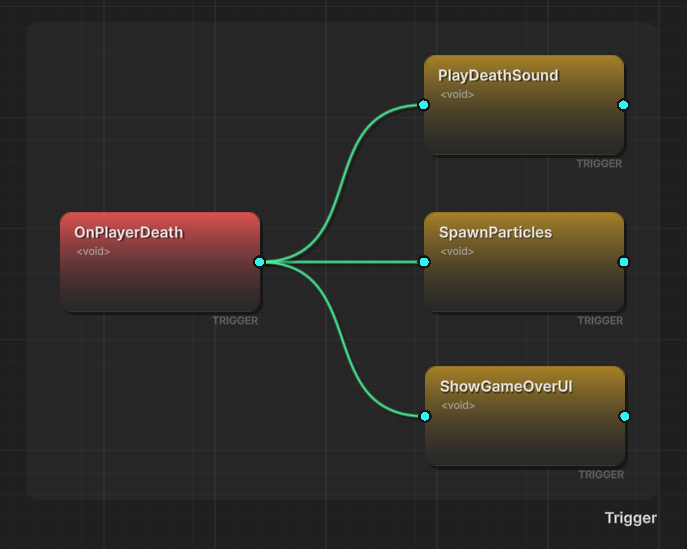
| Trigger (Fan-Out) | Parallel | Non-blocking. One event fires multiple others simultaneously | "OnPlayerDeath" → Play Sound + Spawn Particles + Show UI |
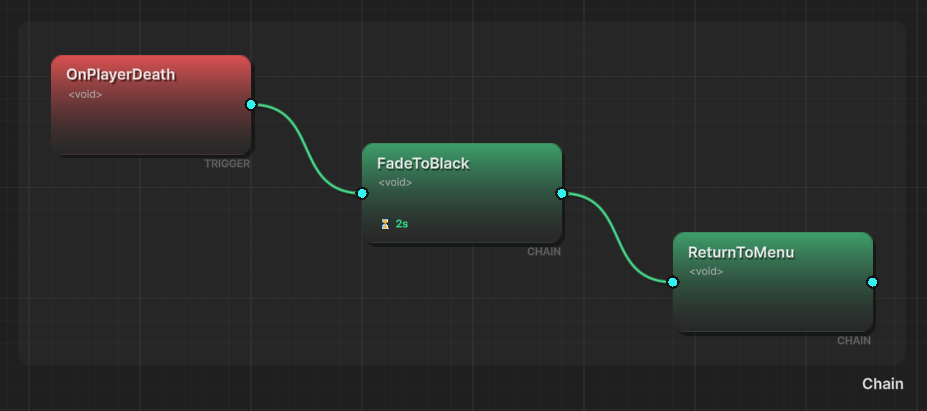
| Chain (Sequence) | Serial | Blocking. Events fire one after another with delays | "StartCutscene" → (Wait 2s) → "ShowDialog" → (Wait Input) → "EndCutscene" |
🎯 Triggers (Fan-Out)
⛓️ Chains (Sequential)
By combining these patterns, you build logic that is both decoupled and structured.
🚀 Opening the Editor
Access the Flow Graph Editor from the Game Event Editor
Game Event Editor → Click "Flow Graph" button in toolbar
This ensures you're working within the correct event library context.
🛠️ Toolbar Overview
The toolbar manages flow graph assets and global settings.

Flow Asset Dropdown
Switch between different Flow Graph assets (e.g., Global_Flow, Level_1_Flow).
Graph content updates instantly when switching.
Create separate flow graphs for different game systems to keep logic clean and maintainable. Store graphs as sub-assets inside Flow Container assets.
Graph Management
New Button (+ New): Create new graph in current container.
Graph Name Field: Click to rename current graph.
Delete Button: Remove current graph (with confirmation).
Graph Controls
Snap Button (Snap): Toggle grid snapping. When enabled, nodes will automatically snap to the 20-unit grid lines during movement, ensuring a perfectly organized layout.
Align Button (Align): Toggle smart alignment guides. When enabled, blue vertical or horizontal dotted lines appear when the node you are dragging aligns its edges (left, center, right) or midlines (top, center, bottom) with other nodes on the canvas.
Active Toggle (🟢 / 🔴): Enable/disable entire graph at runtime.
Refresh Button: Reload container list from GameEventManager.
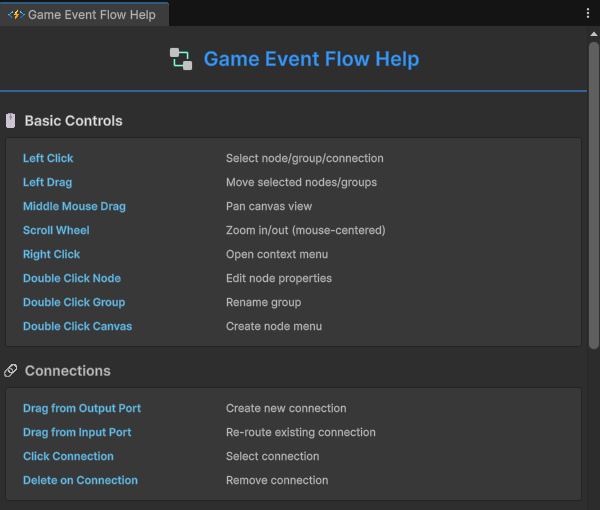
Help Button (? Help): Open Quick Reference Guide with all shortcuts and color codes.
🖱️ Canvas Navigation
The editor features an infinite zoomable canvas designed for large-scale logic graphs.
Basic Controls
| Action | Control | Description |
|---|---|---|
| Pan View | Middle Mouse Drag | Move around the canvas |
| Zoom | Scroll Wheel | Zoom in/out (centered on mouse cursor) |
| Context Menu | Right Click | Add nodes or groups |
| Quick Create | Double Click | Open node creation menu on empty canvas |
Zoom Range: 0.2x - 3.0x (20% to 300%)
Grid: Minor lines every 20 units, major lines every 100 units. When Snap is enabled, nodes lock to the 20-unit minor grid lines.
🎯 Working with Nodes
Creating Nodes
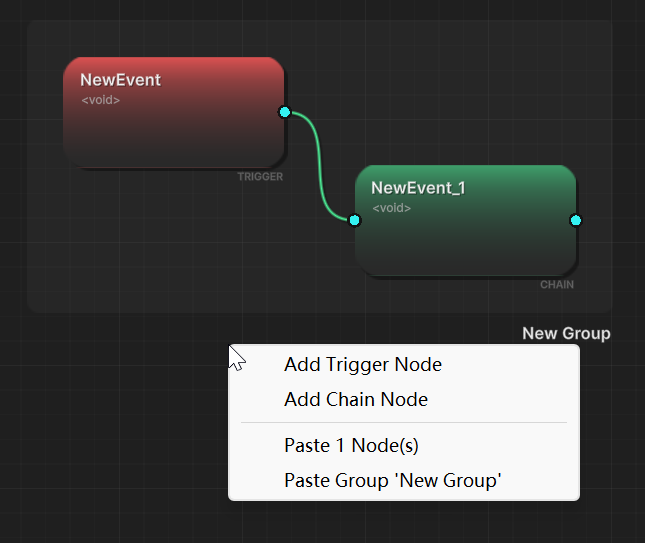
| Action | Control | Description |
|---|---|---|
| Quick Create | Double Click Canvas | Open node creation menu |
| Context Menu | Right Click → Add Node | Create Trigger or Chain node |
| From Selection | Right Click Node | Context menu for node operations |
Node Types:
- Trigger Node: Parallel execution (fan-out pattern)
- Chain Node: Sequential execution (sequence pattern)
Node Selection
| Action | Control | Description |
|---|---|---|
| Select Node | Left Click | Select individual node |
| Add to Selection | Ctrl/Shift + Click | Toggle node in/out of selection |
| Box Select | Left Click + Drag | Select all nodes in rectangle |
| Select All | Ctrl + A | Select all nodes in graph |
| Clear Selection | Escape | Deselect everything |
| Edit Node | Double Click Node | Open Node Behavior Configuration |
Moving Nodes
| Action | Control | Description |
|---|---|---|
| Move Node | Left Drag | Move selected node |
| Multi-Move | Left Drag (with selection) | Move all selected nodes together |
Group Behavior: When nodes belong to a group, moving them automatically updates the group bounds.
Layout Assistants:
- Grid Snapping: When Snap is active, movement is locked to 20-pixel increments, matching the background grid.
- Smart Alignment: When Align is active, the editor provides visual feedback via blue dotted lines. It automatically detects alignment for:
- Vertical: Left edges, horizontal centers, and right edges.
- Horizontal: Top edges, vertical centers, and bottom edges.
Node Context Menu
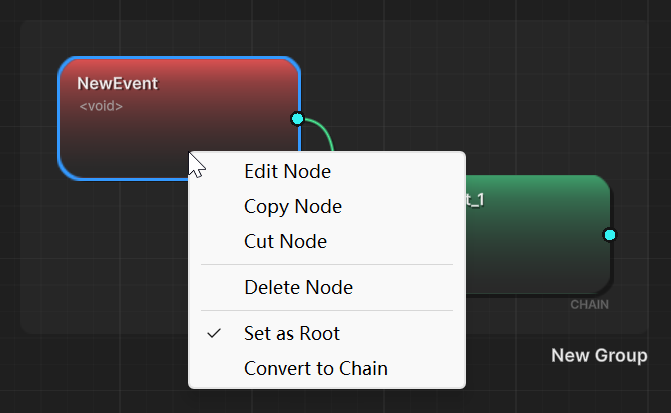
Right-click on a node for quick actions:
- Edit Node: Open Behavior Configuration Window
- Copy Node: Copy to clipboard
- Cut Node: Copy and delete
- Delete Node: Remove node and all connections
- Set as Root: Mark as graph entry point
- Convert to Trigger/Chain: Change node type
Multi-Selection Context Menu
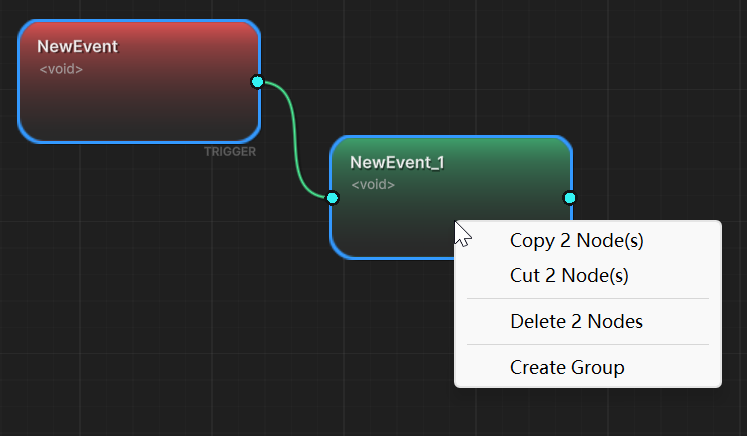
When multiple nodes are selected, right-click shows:
- Copy N Node(s): Copy selection to clipboard
- Cut N Node(s): Copy and delete selection
- Delete N Node(s): Remove all selected nodes
- Create Group: Create group from selected nodes (minimum 2 nodes required)
🔗 Creating Connections
Connections define event flow between nodes.
Connection Operations
| Action | Control | Description |
|---|---|---|
| Create Connection | Drag from Output Port (right) | Drag to Input Port (left) of another node |
| Re-route Connection | Drag from Input Port | Disconnect and connect to different node |
| Delete Connection | Select + Delete | Remove connection |
Visual Feedback:
- Preview line shows while dragging
- Color indicates compatibility (see Connection Types)
- Invalid targets show as grayed out
Connection Rules:
- Always drag from Output (right port) to Input (left port)
- Root nodes have no input port
- Nodes can have multiple incoming and outgoing connections
📁 Grouping System
Organize large graphs with visual groups to improve readability and maintainability.
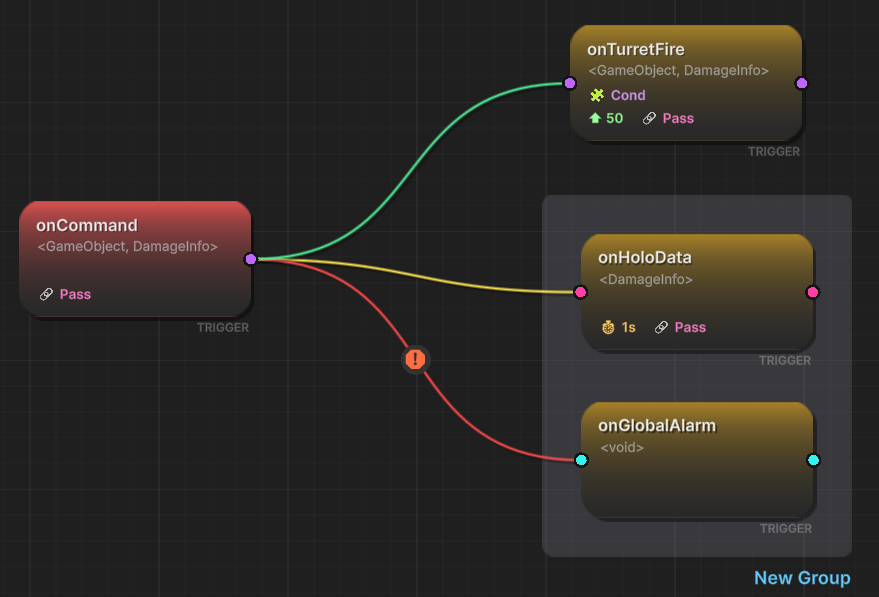
Creating Groups
Method 1: Select nodes → Right Click → Create Group
Method 2: Use box select → Right Click selection → Create Group
Requirements:
- Minimum 2 nodes required
- Selected nodes will be grouped together
- Group bounds calculated automatically from node positions
Managing Groups
| Operation | How To | Result |
|---|---|---|
| Rename | Double-click group title | Enter edit mode (Escape to cancel) |
| Select Group | Left Click group area | Select entire group |
| Move Group | Drag group area | Moves all member nodes together |
| Delete Group Only | Delete key | Removes group frame, keeps nodes |
| Delete Group + Nodes | Shift + Delete | Removes group AND all nodes inside |
Visual Indicators:
- Selected groups: Brighter border + highlighted title
- Group titles: Display in bottom-right corner of group bounds
- Group bounds: Semi-transparent rounded rectangle
Group Membership
Adding Nodes to Group:
- Select existing group + nodes you want to add
- Right Click → Create Group
- All selected nodes will be included in the new group
- Old group is removed, new group is created
Removing Nodes from Group:
- Delete the specific node from the group
- Group automatically removes the node from its membership
- If group has ≤1 node remaining, group is automatically deleted
Constraints:
- One Group Per Node: Each node can only belong to one group at a time
- Auto-Cleanup: Groups with ≤1 nodes are automatically removed
- Dynamic Bounds: Groups resize automatically when member nodes move
Group Context Menu
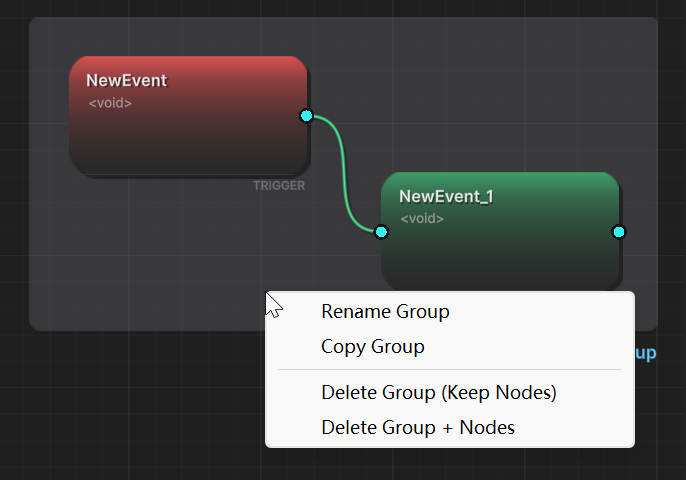
Right-click on a group:
- Rename Group: Enter rename mode
- Copy Group: Copy entire group structure (nodes + internal connections)
- Delete Group (Keep Nodes): Remove group frame only
- Delete Group + Nodes: Remove everything
📋 Copy & Paste System
Duplicate nodes and groups to speed up workflow.
Node Copy & Paste
| Action | Control | Description |
|---|---|---|
| Copy Node(s) | Ctrl + C | Copy selected node(s) to clipboard |
| Cut Node(s) | Ctrl + X | Cut selected node(s) (copy + delete) |
| Paste Node(s) | Ctrl + V | Paste with incremental offset |
| Reset Paste | Escape | Reset paste counter for next operation |
Paste Behavior:
- Press Escape to reset offset counter
- Connections between pasted nodes are preserved
- Pasted nodes are never set as root
Group Copy & Paste
| Action | Control | Description |
|---|---|---|
| Copy Group | Ctrl + C | Copy entire group structure |
| Paste Group | Ctrl + V | Paste group with 50px offset |
What's Copied:
- Group frame and title (with " (Copy)" suffix)
- All member nodes with their configurations
- Internal connections (connections between group members)
- Relative node positions
What's NOT Copied:
- External connections (connections to/from outside nodes)
- Root node status
- Node IDs (new IDs generated automatically)
Right-click menu shows "Copy Group" option for quick access. Both Ctrl+C and right-click menu work identically. Use groups as templates for repeated logic patterns.
⌨️ Keyboard Shortcuts
Copy & Paste
| Shortcut | Action |
|---|---|
| Ctrl + C | Copy selected node(s) or group |
| Ctrl + V | Paste with incremental offset |
| Ctrl + X | Cut selected node(s) (copy + delete) |
Undo/Redo
| Shortcut | Action |
|---|---|
| Ctrl + Z | Undo (up to 50 steps) |
| Ctrl + Shift + Z / Ctrl + Y | Redo |
History Scope: Tracks node creation/deletion, connections, group changes, position changes, copy/paste operations.
Selection
| Shortcut | Action |
|---|---|
| Ctrl + A | Select all nodes |
| Escape | Clear selection / Cancel operation / Reset paste counter |
Deletion
| Shortcut | Action |
|---|---|
| Delete | Delete selected items |
| Shift + Delete | Cascade Delete: Delete group AND all nodes inside |
Delete Behavior:
- Deleting a node: Removes all connected connections and updates group membership
- Deleting a group (Delete): Keeps member nodes
- Deleting a group (Shift + Delete): Removes group and all member nodes
- Deleting a connection: Removes link only
- Groups with ≤1 remaining nodes are automatically deleted
🎨 Context Menu Reference
On Empty Space
- Add Trigger Node: Create new trigger node at cursor position
- Add Chain Node: Create new chain node at cursor position
- Paste Node(s): (if clipboard has nodes) Shows paste count
- Paste Group: (if clipboard has group) Shows group name
On Single Node
- Edit Node: Open Behavior Configuration Window
- Copy Node: Copy to clipboard
- Cut Node: Copy and delete
- Delete Node: Remove node and connections
- Set as Root: Mark as graph entry point
- Convert to Trigger/Chain: Change node type
On Multiple Nodes (Selection)
- Copy N Node(s): Copy selection to clipboard
- Cut N Node(s): Copy and delete selection
- Delete N Nodes: Remove all selected
- Create Group: Group selection (minimum 2 nodes)
On Group
- Rename Group: Enter rename mode
- Copy Group: Copy entire group structure
- Delete Group (Keep Nodes): Remove group frame only
- Delete Group + Nodes: Remove group and all member nodes
📊 Status Bar
Real-time information displayed at bottom of canvas:
- Current zoom level (e.g.,
Zoom: 1.2x) - Node count (e.g.,
Nodes: 15) - Connection count (e.g.,
Connections: 23) - Selection info (e.g.,
Selected: 3 node(s), 1 group(s)) - Undo/Redo stack depth
🎓 Workflow Examples
Example 1: Build a Player Death Sequence
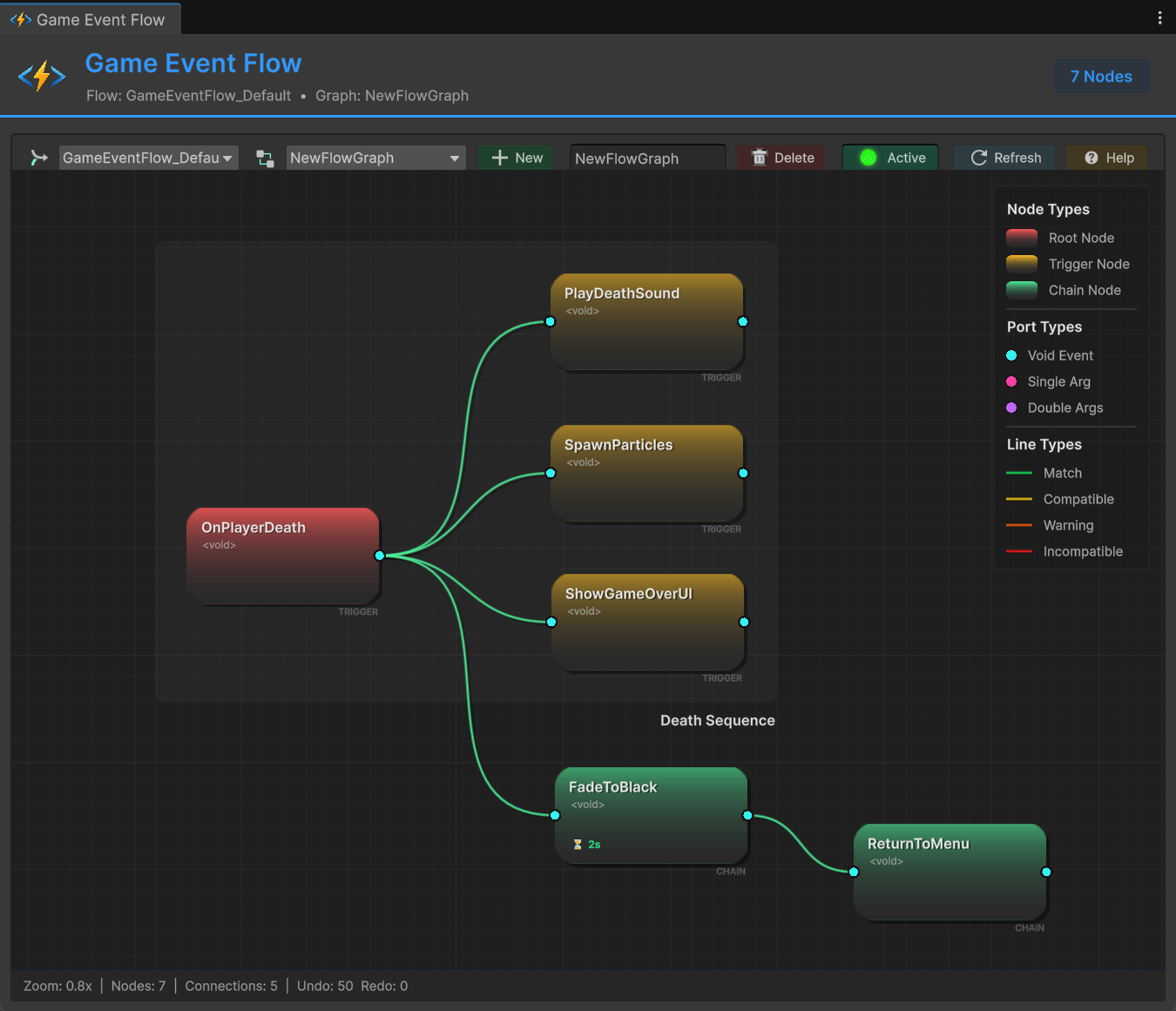
Goal: Create a death sequence with parallel effects and sequential menu transition.
Step 1: Create Root Node
- Double-click canvas → Select "Add Trigger Node"
- Choose
OnPlayerDeathevent - Right-click node → "Set as Root"
Step 2: Add Parallel Actions (Trigger Pattern)
- Create 3 Trigger nodes:
PlayDeathSound,SpawnParticles,ShowGameOverUI - Drag from Root output → Connect to all 3 nodes (fan-out)
Step 3: Add Sequential Actions (Chain Pattern)
- Create Chain node:
FadeToBlack - Double-click → Set delay: 2 seconds
- Create Chain node:
ReturnToMenu - Connect
FadeToBlack→ReturnToMenu - Connect
OnPlayerDeath→FadeToBlack
Step 4: Organize with Groups
- Box select all death-related nodes
- Right-click → "Create Group"
- Double-click group title → Rename to "Death Sequence"
Result: Clean visual representation of parallel sound/VFX execution followed by sequential menu transition.
❓ Troubleshooting
Changes Not Saving
Cause: Unity hasn't serialized changes yet.
Solution:
- Close window to force save
- Switch to another graph and back
- Press Ctrl+S in Unity
Graph Appears Empty
Possible Causes:
- Wrong graph selected in toolbar dropdown
- Flow container not assigned in GameEventManager
Solution:
- Check toolbar graph dropdown selection
- Verify container assignment in GameEventManager Inspector
Cannot Create Connection
Possible Causes:
- Dragging from Input to Output (reversed direction)
- Trying to connect to Root node's input port
- Connection already exists
Solution:
- Always drag from Output (right) to Input (left)
- Root nodes have no input port
Group Not Auto-Resizing
Cause: Group bounds only update when member nodes are moved.
Solution: Move any member node slightly to trigger bounds recalculation.
Pasted Group Missing External Connections
Expected Behavior: Only internal connections (between group members) are copied.
Explanation: External connections to nodes outside the group are intentionally not copied to allow flexible reuse of group templates.
Solution: Manually reconnect external dependencies after pasting group.
Cannot Create Group
Possible Causes:
- Less than 2 nodes selected
- Trying to group already grouped nodes
Solution:
- Select at least 2 nodes
- To regroup, delete old group first or select both group and new nodes to create new group
📖 Next Steps
Now that you understand canvas navigation and organization, continue your journey:
🔗 Connection Types & Compatibility
Core Concept: Understand port colors, line types, and type compatibility rules.
⚙️ Node Behavior Configuration
Logic Control: Configure delays, conditions, and execution settings.
Expert Level: Build complex event orchestrations with combined patterns.
Organize Early: Create groups as you build to avoid messy graphs later.
Use Undo Freely: Ctrl+Z tracks up to 50 steps—experiment with connections without fear.
Build Templates: Create reusable group templates for common patterns.
Name Descriptively: Clear graph and group names help when switching between systems.
Set Root Nodes: Mark clear entry points for each logical flow sequence.
Copy Smart: Build once, paste many times. Use groups as blueprints.
Forgot a shortcut? Click the Help button (? Help) in the toolbar to view the complete Quick Reference Guide with all keyboard shortcuts, mouse controls, and visual color legend.