🚀 Quick Start
📋 Overview
This introductory scene walks you through the one-time setup required to activate the Game Event System in your project. Before exploring any demos, you'll need to initialize the core framework components.
- How to open the Game Event System Dashboard
- How to initialize the system with one click
- What components are created during setup
🎬 Demo Scene
Assets/TinyGiants/GameEventSystem/Demo/00_QuickStart/00_QuickStart.unity
Open this scene to begin the initialization process.
🤔 Why Initialize?
The Game Event System relies on a persistent manager (GameEventManager) to coordinate all event operations. Without this manager, events cannot be raised or listened to.
The initialization process automatically sets up:
| Component | Description |
|---|---|
| 🎮 GameEventManager | Singleton manager (marked as DontDestroyOnLoad) |
| 📚 Event Database | Default asset to store your event definitions |
| 🔗 Flow Container | Visual logic graph for event orchestration |
| ⚙️ Generated Code | C# classes for built-in event types (void, int, float, etc.) |
📖 Step-by-Step Setup
1️⃣ Open the Dashboard
From Unity's top menu, navigate to:
Tools → TinyGiants → Game Event System
This opens the Game Event System window — your central hub for managing events, databases, and flow graphs.
2️⃣ Check System Status
Locate the "Initialize System" section in the window:
🔵 Before Initialization

- The blue button "Initialize Event System" is visible
- ⚠️ Warning: "Please initialize the system first"
🟢 After Initialization

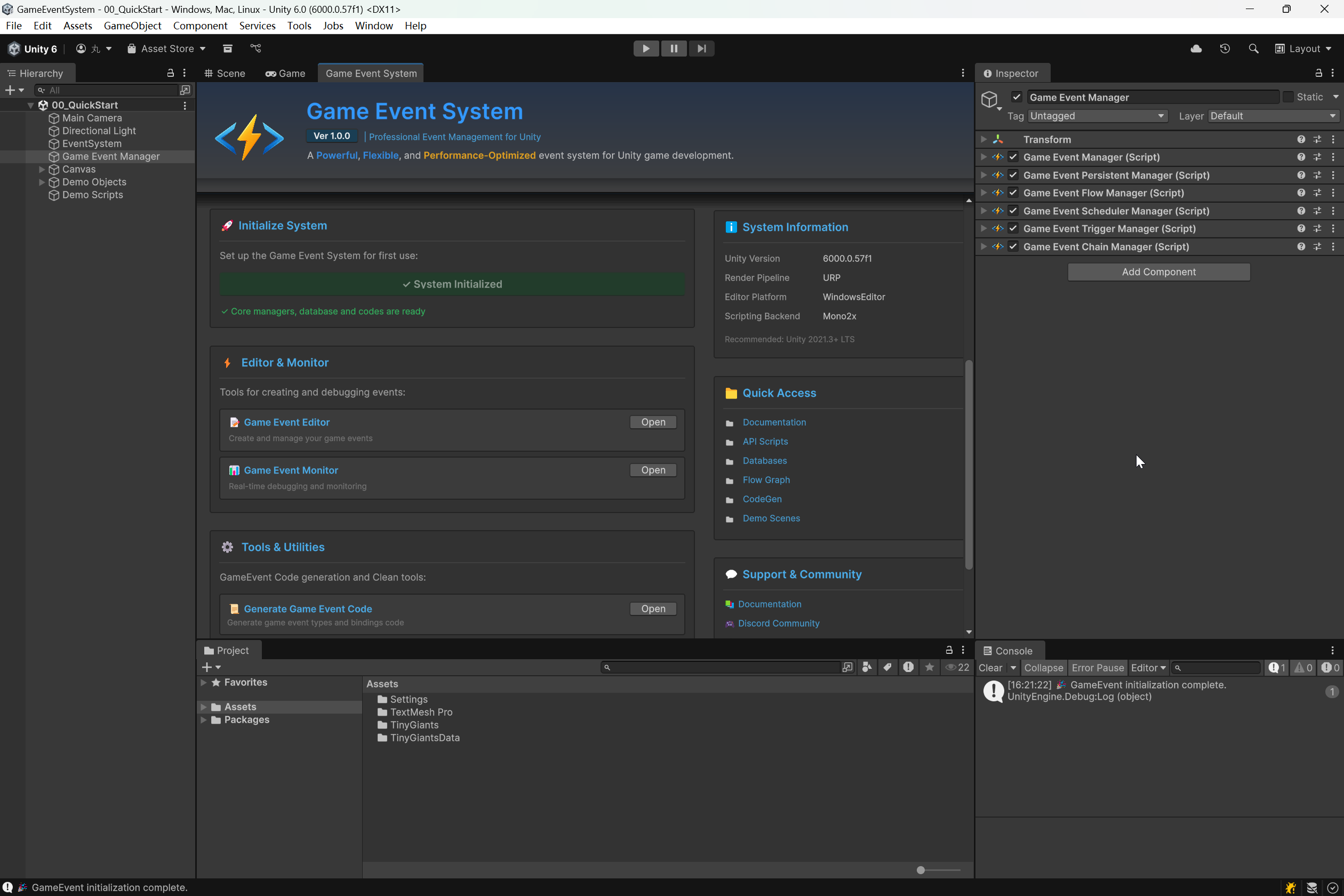
- The status bar turns green with "✓ System Initialized"
- ✅ Confirmation: "Core managers, database and codes are ready"
3️⃣ Click Initialize
Press the "Initialize Event System" button. The plugin will automatically perform the following:
| Action | Result |
|---|---|
| Create Managers | Adds GameEventManager GameObject to the scene (persistent) |
| Generate Database | Creates DefaultEventDatabase.asset in your project |
| Setup Flow Graph | Creates DefaultFlowContainer.asset for visual logic |
| Compile Code | Generates type-safe C# event classes |
The Console will display: 🎉 GameEvent initialization complete
✅ Verification
After initialization completes, verify the setup:
-
Hierarchy Check 🔍
A
GameEventManagerGameObject should appear at the root level -
Inspector Check 👀
Select the manager to see assigned Database and Flow Container references
-
Console Check 📝
Look for the success message confirming initialization
Each scene needs its own GameEventManager to function. The manager determines which Event Databases and Flow Graphs are active in that scene. While the databases themselves (ScriptableObject assets) are persistent and reusable across scenes, each scene must explicitly bind which databases it will use.
🎯 What's Next?
With the environment ready, you can now explore the core functionality of the framework.
Next Chapter: Learn how to create and trigger your first event with 01 Void Event
For technical details about the initialization process and manual setup options, see Installation Guide.