Game Event Node Behavior
While the graph shows connections, the Node Behavior Configuration Window controls the detailed execution logic of each individual node.
Access: Double-click any node in the flow graph to open the configuration window for node behavior.
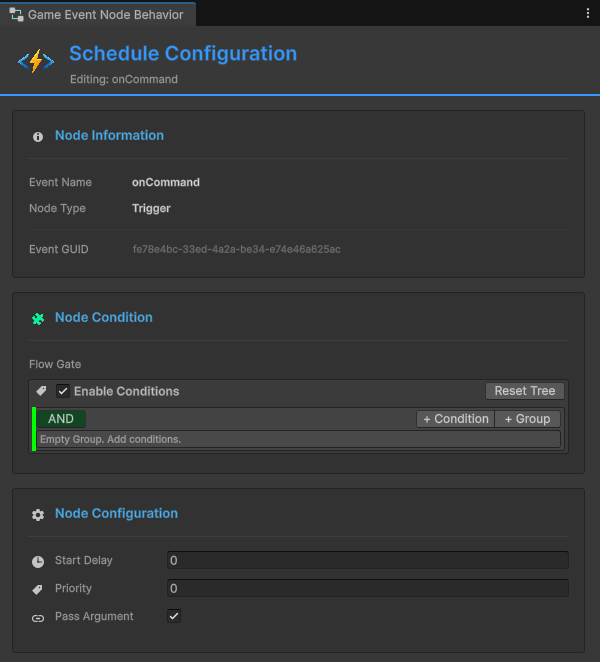
🎯 Window Overview
The configuration window is divided into three main sections:
| Section | Purpose | Applies To |
|---|---|---|
| Node Information | View event details and type | All nodes |
| Node Condition | Visual logic gate for execution control | All nodes |
| Node Configuration | Timing, priority, and data passing settings | All nodes (type-specific) |
📋 Node Information
Displays read-only details about the selected node.

Event Name: The Game Event this node will raise.
Node Type: Trigger (parallel) or Chain (sequential).
Event GUID: Unique identifier for internal tracking.
Use Case: Verify you're editing the correct node before making changes.
🧩 Node Condition (Flow Gate)
Each node has its own visual condition tree that controls whether it executes.
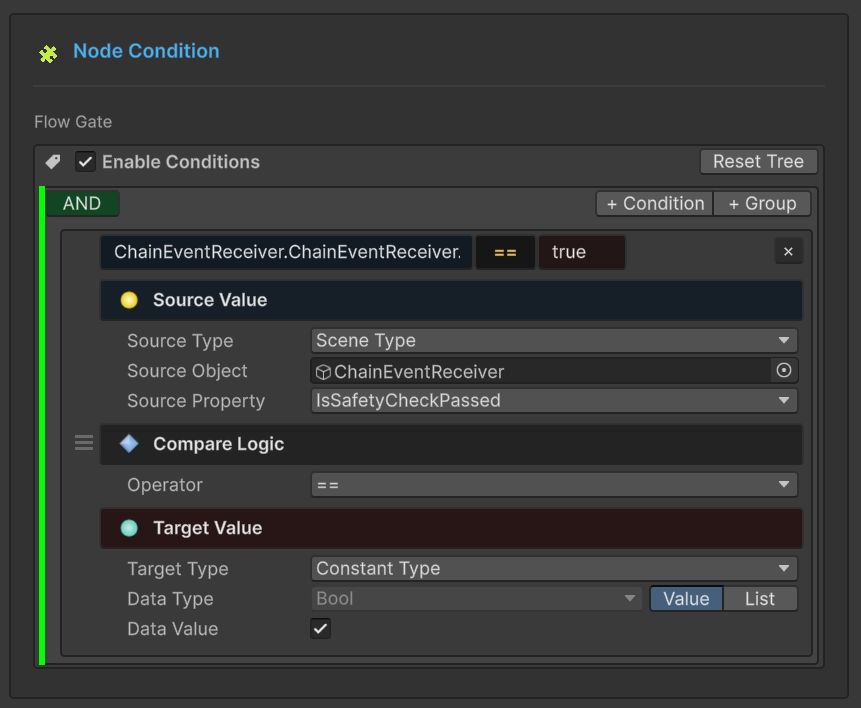
How It Works
If condition evaluates to FALSE:
- Node does not fire
- Flow stops down this branch
- Connected child nodes are skipped
If condition evaluates to TRUE:
- Node fires normally
- Flow continues to children
Condition Context
You have access to:
Event Argument (Arg): Data from the incoming event
Example: Arg.amount > 50
Sender (Sender): Source object (for sender events)
Example: Sender.tag == "Enemy"
Scene Objects: Any GameObject/Component in the scene
Example: Player.Health < 20
Visual Builder
The condition system uses the same Visual Condition Tree as Event Behaviors.
Full Documentation: See Visual Condition Tree for complete guide on:
- Building logic gates (AND/OR groups)
- Source types (Event Argument, Scene Type, Random, Constant)
- Comparison operators
- Type validation
- Best practices
The visual condition system is identical across:
- Event Behaviors (in Event Inspector)
- Flow Nodes (this window)
Learn it once, use it everywhere!
Practical Example
Scenario: Only play "Low Health Warning" when health is critical.
Condition Tree:
Result: Sound only plays when all three conditions pass.
⚙️ Node Configuration
Settings that control timing, priority, and data flow.
General Settings (All Nodes)
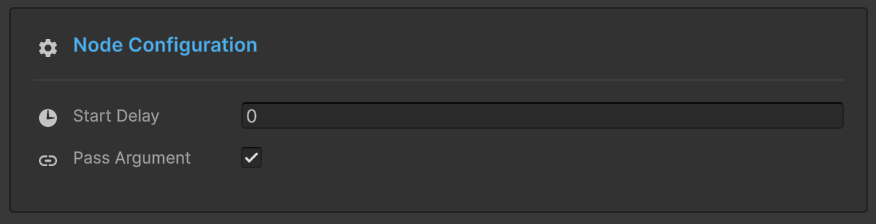
Start Delay
Unit: Seconds (float)
Effect: Node waits this duration before raising its event.
Use Cases:
- Staggered explosions (0.2s apart)
- Delayed reactions to events
- Timed sequences
Example:
🔘 Raise: OnButtonPressed
│
├─► ⏱️ 0.5s ──┐
│             ▼
│            🎵 PlayClickSound        ✅ Executed
│
├─► ⏱️ 1.0s ────────┐
│                   ▼
│                  💬 ShowConfirmation  ✅ Executed
│
└─► ⏱️ 2.0s ──────────────────┐
                              ▼
                             🚪 CloseMenu        ✅ Finalized
Visual Indicator: Badge shows ⏱️ 0.5s at bottom of node.
Pass Argument
Type: Boolean toggle
Effect: Controls whether event data flows to this node.
✅ Checked (Pass Argument: ON)
Node receives data from previous event (if types are compatible).
When to Use:
- Forwarding damage info
- Passing scores/values
- Data pipelines
Example:
Connection Color: Depends on type compatibility (Green/Yellow/Orange).
❌ Unchecked (Pass Argument: OFF)
Node fires as static call with default/null arguments.
When to Use:
- Connecting incompatible types
- Generic notifications (no data needed)
- Forcing type-safe connections
Example:
🚀 Event: OnDamageReceived(DamageInfo)
│   (Payload: { amount: 20.0, ... })
│
🛡️ Filter: [ Pass Argument: OFF ]
│   (Logic: Trigger Only / Data Dropped)
│
└─► 🔊 Callback: PlayGenericSound()
│
🎯 Result: Sound plays reliably without needing DamageInfo data.
Connection Color: Always 🟢 Green (forced safe).
Impact on Connections
Pass Argument directly affects connection line colors:
| Pass | Source Type | Target Type | Result |
|---|---|---|---|
| OFF | Any | Any | 🟢 Green (always safe) |
| ON | <int> | <int> | 🟢 Green (perfect match) |
| ON | <int> | <void> | 🟡 Yellow (data discarded) |
| ON | <int> | <float> | 🟠 Orange (conversion) |
| ON | <int> | <string> | 🔴 Red (blocked) |
Recommendation: Use OFF when connecting incompatible types to avoid red connections.
Type-Specific Settings
Configuration options change based on node type (Trigger vs Chain).
Trigger Node
Trigger Node (🟠 Orange)
Execution: Parallel (fan-out) - fires and immediately continues.
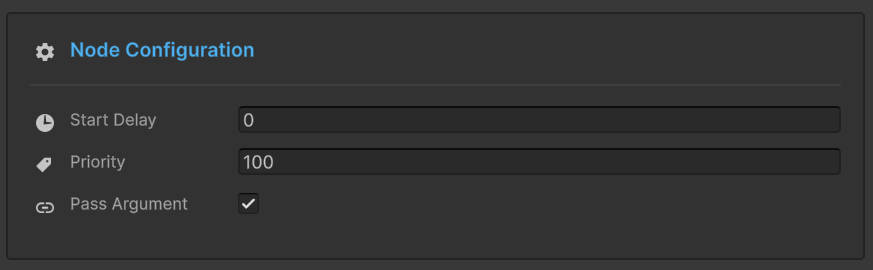
Priority
Type: Integer (default: 0)
Rule: Higher number = Earlier execution
Use Case: Control execution order when multiple Triggers connect to the same parent.
How Priority Works
Scenario: Three Triggers connected to one Root node.
Execution Order: 10 → 5 → 0 (high to low)
Priority Values
| Value | Meaning | Use Case |
|---|---|---|
| Positive | Higher priority | Critical actions (sound, input blocking) |
| 0 | Default priority | Normal actions |
| Negative | Lower priority | Cleanup, logging, analytics |
Example Use Cases:
- +100: Block player input
- +50: Play critical sound
- 0: Standard VFX
- -50: Log to analytics
- -100: Cleanup temporary objects
Visual Indicator
Badge shows ⬆️ +10 at bottom of node.
Chain Node
Chain Node (🟢 Green)
Execution: Sequential (blocking) - fires and waits before continuing.
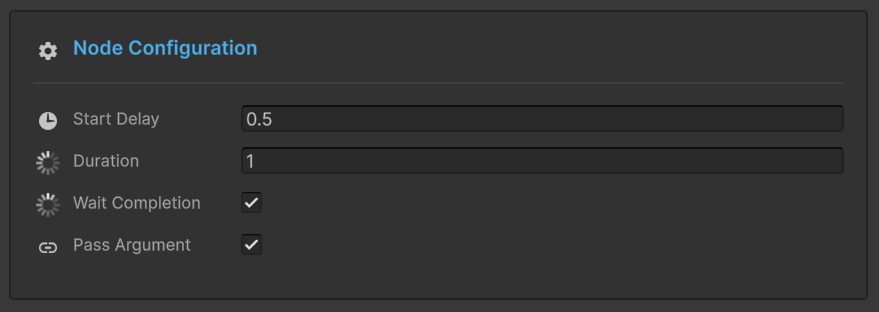
Duration
Type: Seconds (float)
Effect: Forces graph to pause at this node for specified time after event fires.
Use Case: Wait for animations, timed sequences, cooldowns.
Duration Examples
Animation Wait:
🖼️ T+0.0s | Initiation
⚔️ PlayAttackAnimation()
│
┆  (Δ 1.5s Delay: Animation Duration)
▼
🖼️ T+1.5s | Execution
💥 DealDamage()
│
📊 Result: 1.5s total duration | ✅ Chain Completed
Timed Sequence:
🖼️ T+0.0s | Activation
⚠️ ShowWarning()
│
┆  (Δ 3.0s Display Duration)
▼
🖼️ T+3.0s | Cleanup
🙈 HideWarning()
│
📊 Lifecycle: 3.0s Active | ✅ Auto-Cleanup Completed
Visual Indicator: Badge shows ⏳ 3.0s at bottom of node.
Wait for Completion
Type: Boolean toggle
Effect: Graph waits for async operations to finish before continuing.
Requirements: Event listener must return Task or IEnumerator.
Async Support
Coroutines (IEnumerator):
public IEnumerator OnLoadLevel()
{
    yield return SceneManager.LoadSceneAsync("Level2");
    Debug.Log("Load complete");
}
Async/Await (Task):
public async Task OnDownloadData()
{
    await DownloadFromServer();
    Debug.Log("Download complete");
}
Flow Behavior:
Without "Wait for Completion", ShowSuccessMessage would fire immediately (before loading finishes).
Duration + Wait Combined
Both settings work together:
Scenario A: Task < Duration (Minimum Floor)
Example: The cutscene finishes quickly (1.5s), but we want to maintain the 2.0s pacing.
🖼️ T+0.0s | Initiation
🎬 PlayCutscene() ➔ [Task Starts]
│
├─ ⏱️ 1.5s: [Task Completed Internally]
│  ⏳ Status: Still Waiting (Safety Floor active)
│
└─ 🏁 T+2.0s: Logic Continues
│
📊 Result: Exact 2.0s duration (Pacing Maintained)
Scenario B: Task > Duration (Async Wait)
Example: The cutscene takes longer (5.0s) due to loading. The system waits for the task to finish.
🖼️ T+0.0s | Initiation
🎬 PlayCutscene() ➔ [Task Starts]
│
├─ ⏱️ 2.0s: [Safety Floor Reached]
│  ⏳ Status: Task still running... (Async Wait active)
│
└─ 🏁 T+5.0s: [Task Finally Completed] ➔ Logic Continues
│
📊 Result: 5.0s duration (Full Completion Guaranteed)
Visual Indicators:
- ⏳ 2.0s (duration badge)
- ⚓ Wait (completion badge)
💡 Configuration Examples
Example 1: Delayed Trigger Sequence
Goal: Play 3 sounds with staggered timing.
Example 2: Conditional Chain with Wait
Goal: Load level only if player completed tutorial.
Flow:
- Level completes
- Check condition (passes if tutorial done)
- Start async load, wait for completion
- Show level start UI
🔄 Quick Node Type Conversion
Changed your mind about node type? No need to delete and recreate!
How To:
- Right-click the node in graph
- Select "Convert to Trigger" or "Convert to Chain"
What's Preserved:
- ✅ Event assignment
- ✅ Connections
- ✅ Start Delay
- ✅ Pass Argument
- ✅ Conditions
What Changes:
- Trigger → Chain: Priority removed, Duration/Wait added
- Chain → Trigger: Duration/Wait removed, Priority added
❓ Troubleshooting
Node Doesn't Fire
Checklist:
- ✅ Is condition enabled and passing?
- ✅ Is parent node firing?
- ✅ Is connection intact?
- ✅ Is graph enabled in toolbar?
Debug: Add temporary condition-less node to test flow.
"Pass Argument" Grayed Out
Cause: Event type is void (no arguments to pass).
Solution: This is expected—void events have no data to forward.
Duration Not Working
Common Issues:
- Node type is Trigger (duration only works on Chain nodes)
- Duration set to 0
- "Wait for Completion" blocking longer than duration
Solution: Verify node type and check both duration and wait settings.
Async Not Waiting
Cause: "Wait for Completion" is unchecked.
Solution: Enable "Wait for Completion" toggle.
Requirement: Event listener must return Task or IEnumerator.
📖 Next Steps
Now that you can configure individual nodes, learn advanced patterns:
Build complex orchestrations with best practices
Master the condition builder (full reference)
Best Practice: Configure nodes as you build, not after.
- Add node to graph
- Double-click to configure
- Set conditions first (prevents unwanted execution)
- Add timing settings
- Test in isolation before connecting
Changes save automatically when you:
- Close the window
- Switch to another node
- Click outside the window
No manual save button needed!