Game Event Editor
Your primary workspace for organizing, refining, and maintaining your event library. While the Game Event Creator is for birthing new events, the Editor is where you manage their entire lifecycle.
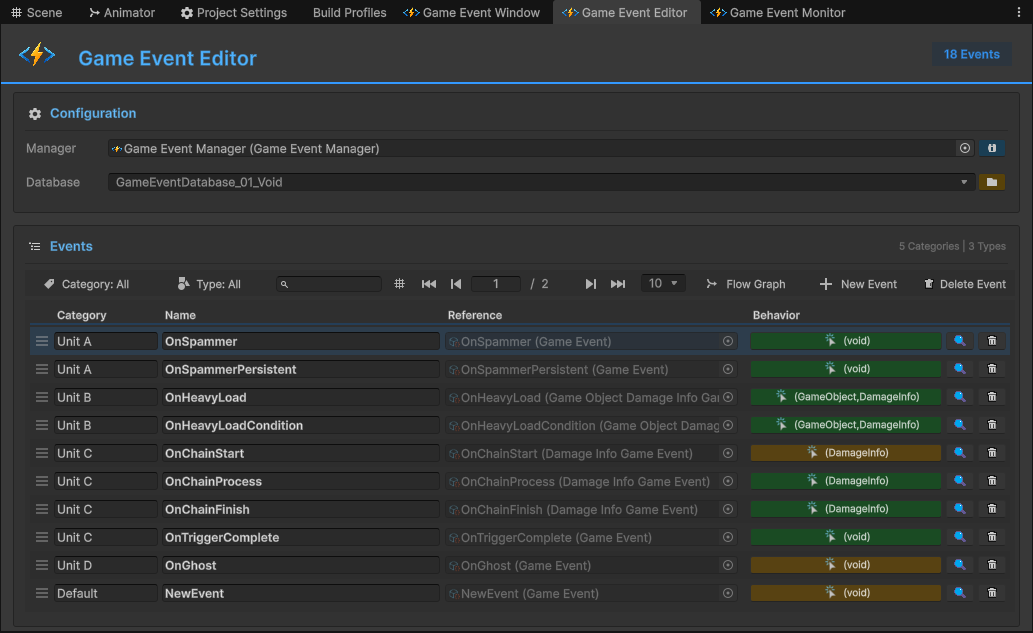
🚀 Opening the Editor
Access the editor through the following method:
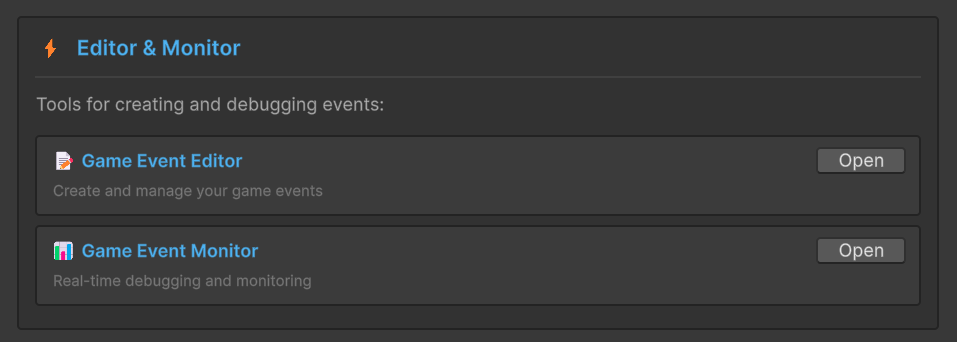
From the System Dashboard:
Game Event System Window → Click "Game Event Editor"
🎛️ Configuration Bar
Located at the top of the window, this bar determines the scope of your work.
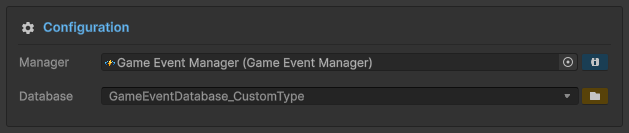
Manager Selection
Purpose: Connect the editor to the active GameEventManager in your scene.
Behavior:
- ✅ Auto-detects manager on startup
- 🔄 Updates when switching scenes
- 📌 Pin button opens Manager Inspector
If you have multiple scenes open, the editor will target the manager in the active scene. Switch scenes to update the connection automatically.
Database Selector
Switch between different event databases to focus your work.
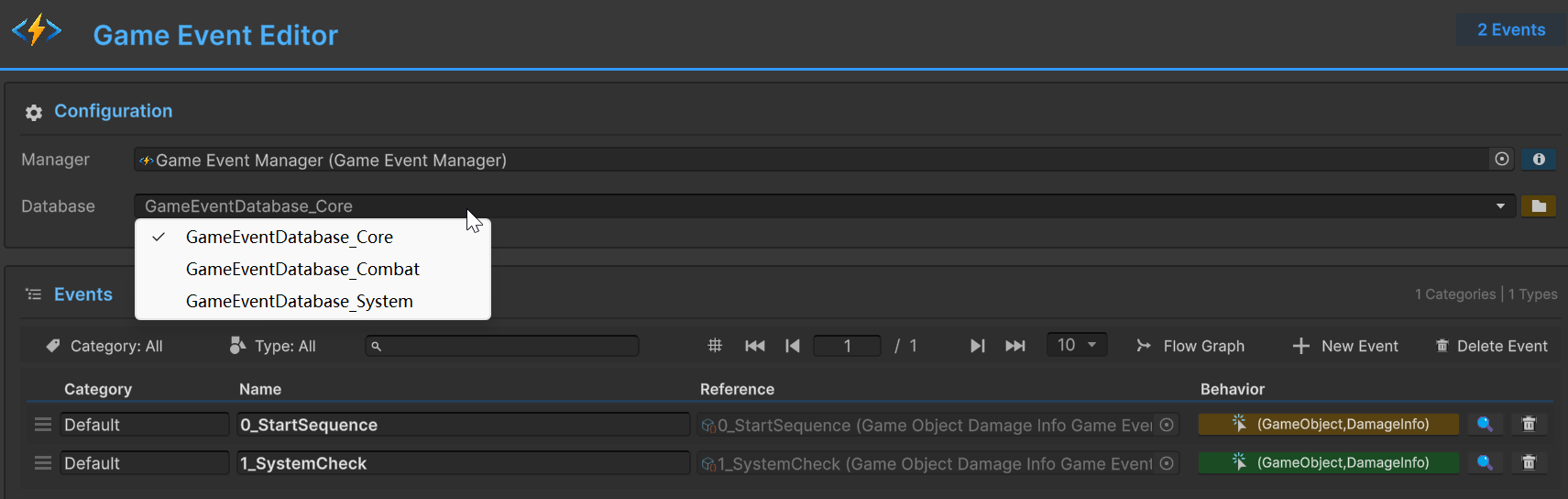
The dropdown only shows databases marked as Active in the Game Event Manager. If your database is missing, check its active state in the Manager Inspector.
🛠️ Toolbar & Display Modes
Powerful filtering and view controls for managing large event libraries.

View Modes
Toggle between two display strategies:
| Mode | Icon | Best For | Behavior |
|---|---|---|---|
| Page Mode | 1 / 5 | Large databases (100+ events) | Shows events in pages (10-100 per page) |
| Full Mode | Grid icon | Small databases or bulk operations | Single scrollable list with all events |
Switching Modes:
- Click the grid icon in the toolbar
- Your preference is saved between sessions
Page Size Options: 10, 20, 50, or 100 events per page (click the number to change)
🧩 Smart Filtering System
Three layers of filtering to find exactly what you need:
- 1️⃣ Category Filter
- 2️⃣ Type Filter
- 3️⃣ Search Bar
Category matching
Show events from a specific category.
Usage
- Category: All ➔ 🟦 Shows All events
- Category: Combat ➔ 🟥 Shows only Combat events (Damage, Death, Spawn)
- Category: UI ➔ 🟩 Shows only UI events (Click, Hover, Open)
Categories are defined in the event's Category field (editable in the list).
Signature matching
Filter events by their underlying C# parameter types.
Usage
- Type: All ➔ ⚪ Shows All signature types
- Type: void ➔ 🔘 Shows only Parameterless events
- Type: Int32 ➔ 🔢 Shows only
GameEvent<int> - Type: GameObject ➔ 📦 Shows only GameObject reference events
The dropdown is auto-populated based on the events currently present in your database.
Fuzzy search
High-performance, real-time filtering by event name.
Usage
- ⌨️ Search: damage ➔ 🔍 Displays all events matching the substring (case-insensitive)
- ⚡
OnDamageTaken - ⚡
OnDamageDealt - ⚡
ApplyDamageMultiplier
- ⚡
Features
- 🚀 Instant Filtering — Results update immediately as you type.
- 🔡 Case-Insensitive — DAMAGE, Damage, and damage yield the same results.
- 🧩 Partial Match — Matches any part of the name (Prefix, Suffix, or Middle).
Click the × button in the bar or press Esc to reset the view.
🔀 Multi-Layer Filtering (Combination)
All three filters work in tandem using AND Logic to help you drill down into the most specific results.
Example Scenario To find a specific health-related combat event, you might set:
🟦 Category: Combat ➕ 🔢 Type: Int32 ➕ ⌨️ Search: damage
🎯 Result:
🔍 Displays only Combat-category, Integer-type events with "damage" in the name (e.g., OnDamageTaken).
🧹 Quick Reset
Need to start over? Returning to the full list is instant.
- Action: Set Category & Type to All + Clear the Search Bar.
- Shortcut: Pressing the × button in the search bar and selecting "All" from the dropdowns will immediately restore the full view.
The system remembers your filter settings even when you switch between different database tabs, ensuring a seamless workflow.
📝 The Event List
Each row represents one event asset with editable properties and action buttons.

Editable Fields
- 1️⃣ Category Field
- 2️⃣ Name Field
Category Field
Organize events into logical groups.
Usage:
- Click to edit
- Press Enter or click away to save
- Changes apply immediately
Name Field
Rename the event asset.
Key Feature: 🔒 GUID-Protected Renaming
File Renaming:
When you rename an event, the .asset file is automatically renamed to match:
Before: OnPlayerDied.asset
After:  OnCharacterDeath.asset
Thanks to Unity's GUID system, you can rename events fearlessly. Nothing breaks! This is one of the system's most powerful features.But it is best not to define events with the same name in the same database, as this habit may introduce unnecessary confusion in the future
Action Buttons
Four buttons per row provide quick access to related tools:
📄 Reference Field (Read-Only)
Shows the actual event asset with its full type signature.
Actions:
- Left-Click: Select and ping asset in Project window
- Right-Click: Context menu with options:
- Copy GUID
- Copy Name
- Ping in Project
- Open Asset
🎯 Behavior Button (Color-Coded)
Configure advanced event behaviors (actions, conditions, delays, repeating, looping and persistent).
Button States:
| Color | Icon | Meaning | Tooltip |
|---|---|---|---|
| 🟢 Green | ✓ | Configured (Inspector) | Has Inspector bindings |
| 🔵 Blue | ▶ | Configured (Runtime) | Has runtime listeners |
| 🟡 Orange | ⚠ | Not configured | No bindings yet |
Open Game Event Behavior Window to learn about the complete event behavior configuration.
🔍 Reference Finder
Discover where this event is used in the current scene.
Use Case: Before deleting an event, check if anything is using it.
You can jump to Game Event Reference Window to learn more about its powerful scene reference lookup capabilities.
🗑️ Delete Button
Remove the event asset from the database.
Behavior:
- Click trash icon
- Confirmation dialog appears
- Shows event details (name, type, category)
- Confirm → Event deleted permanently
What Gets Deleted:
- ✅ Event asset (
.assetfile) - ✅ Sub-asset entry in database
- ✅ Any associated bindings in Manager
What Doesn't Break:
- ❌ Scene won't break (references become
Missing) - ❌ Scripts won't error (null checks should handle it)
Deletion is permanent. Use the Reference Finder first to check usage.
⚡ Global Actions (Top-Right Toolbar)
Quick access to related workflows:
🕸️ Flow Graph
Build visual event chains and orchestration logic.
Button: "Flow Graph"
What It Opens: Game Event Flow Editor
When to Use:
- You need Event A to trigger Events B, C, and D
- You want sequential execution with delays
- You're building complex conditional branching
➕ New Event
Batch-create multiple events at once.
Button: "New Event"
What It Opens: Game Event Creator
When to Use:
- Creating many events of the same or different type
- Generating events from custom types
- Bulk event creation workflow
🗑️ Delete Events (Batch Mode)
For efficient maintenance of large databases, the Editor supports a dedicated batch deletion mode.
Entering Batch Mode
Click the Delete Event button on the far right of the standard toolbar (see image below) to toggle the selection interface.
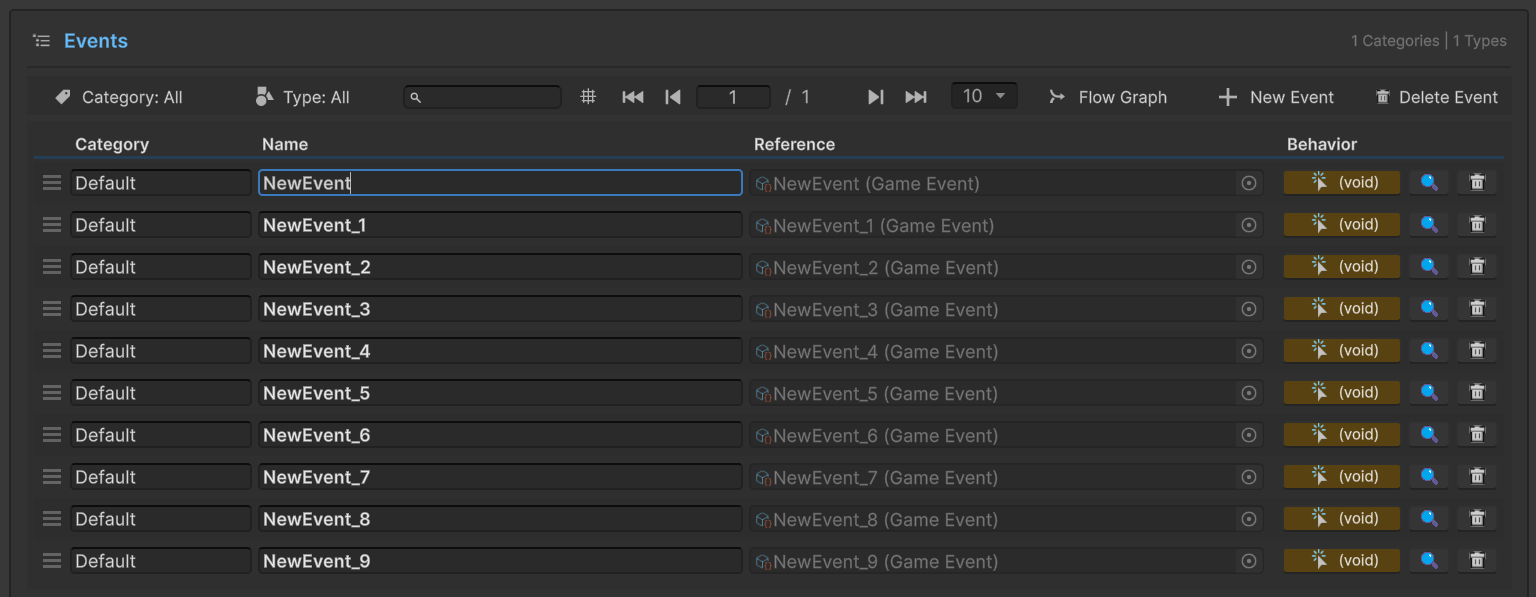
Selection Controls
Once clicked, the toolbar transforms to provide batch operations, and selection checkboxes will appear next to each event row:
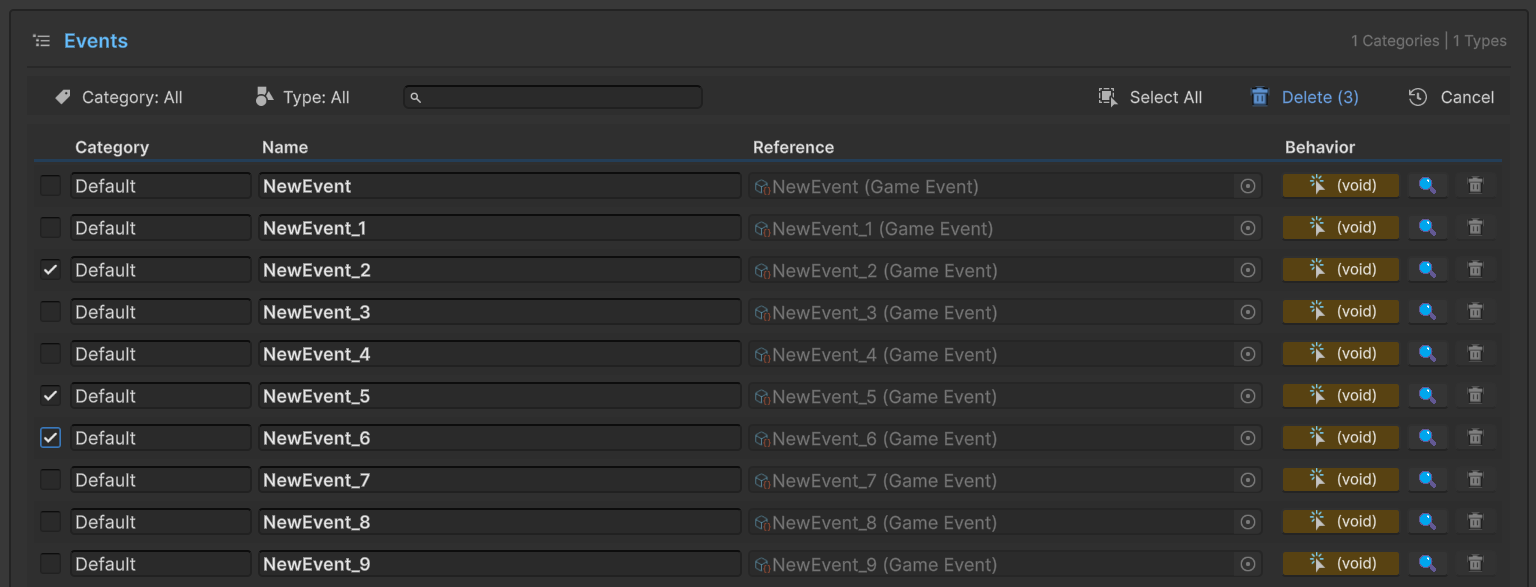
| Action | Description |
|---|---|
| Select All | Checks every event currently visible in the list (respects active filters). |
| Delete | Opens a final confirmation dialog listing all selected events for permanent removal. |
| Cancel | Exits batch mode and clears all current selections without making changes. |
Workflow Steps:
- Click Delete Event to enter selection mode.
- Manually check specific events or use Select All.
- Click Delete to process the removal, or Cancel to return to the standard view.
- Irreversible: Bulk deletion cannot be undone.
- Filter Sensitivity: "Select All" only affects events that meet your current filter criteria (Category/Type/Search).
- Reordering Disabled: While in Batch Mode, the drag-and-drop reordering handles (☰) are hidden to prevent accidental moves.
🎨 Row Reordering (Drag & Drop)
Change event order by dragging rows:
How to Reorder:
- Hover over the handle icon (☰) on the left of any row
- Click and drag vertically
- Release to drop in new position
When Available:
- ✅ No active filters (Category: All, Type: All, Search: empty)
- ✅ Not in batch selection mode
When Disabled:
- ❌ Any filter active (would break visual continuity)
- ❌ Batch selection mode enabled
Why Order Matters: Event order affects:
- Display order in dropdowns
- Alphabetical grouping in some tools
- Personal organization preference
Each database has its own event order. Switching databases preserves their individual ordering.
📊 Statistics Badge
Located in the header, shows real-time event count:
Display: 150 Events (example)
What It Counts:
- Total events in currently selected database
- Updates immediately when creating/deleting events
- Reflects filtered count when filters are active
❓ Troubleshooting
This section covers common issues and their solutions. If you encounter a problem not listed here, please check the console for error logs.
1. Events Not Appearing
Problem: You created events, but they are not visible in the event list.
Check Active Database
- Look at the Database dropdown menu.
- Confirm if the correct database is selected.
- Try switching databases to refresh the list.
Check Filters
- Set Category ->
All - Set Type ->
All - Clear the search bar.
- Check if events appear after resetting filters.
Check Manager Status
- Click the Manager field -> Ping Inspector.
- Verify the database is Active (green badge).
- If it shows Inactive, toggle the switch to Active.
If none of the above checks are abnormal, try modifying any code to trigger a Unity compilation, which will update the database status. Check again in the Editor window to see if the created event has occurred.
If you still cannot create it, please contact me
2. Can't Edit Event Properties
Problem: The Category or Name fields appear grayed out and cannot be edited.
Potential Cause: The event might be part of a locked asset, or the database file is set to read-only.
Solution:
- Verify if the database file in your project is writable (not read-only in OS).
- Ensure you are not currently in Prefab Isolation Mode.
- Check if the event asset is locked/checked out in your version control system (e.g., Perforce or Git LFS).
3. Reordering Not Working
Problem: Dragging rows to reorder events is not functioning.
Checklist: To enable drag & drop reordering, ensure the following conditions are met:
- Are all filters (Category/Type) set to "All"?
- Is the search bar empty?
- Are you not in batch selection mode?
Reordering is only available when viewing the full, unfiltered list.
4. Behavior Button Not Opening
Problem: Clicking the behavior button does not trigger any action.
Check Manager Assignment
If the Manager field shows None:
- The Auto-detect system should normally find it.
- If it fails, manually drag the manager object from your scene into the field.
Check Console for Errors
- Open the Console window (
Ctrl+Shift+C). - Look for Red Errors (exceptions).
- Fix any compilation issues first, as script errors can prevent UI events from firing.
Keep this window docked alongside your Inspector. When you select an event in the list, the Inspector shows its full asset details—perfect for quick property checks without leaving your workspace.