Game Event Behavior
Define what happens when an event fires. Unlike traditional events that execute blindly, this system lets you attach conditions, delays, loops, and visual actions directly to the event asset itself.
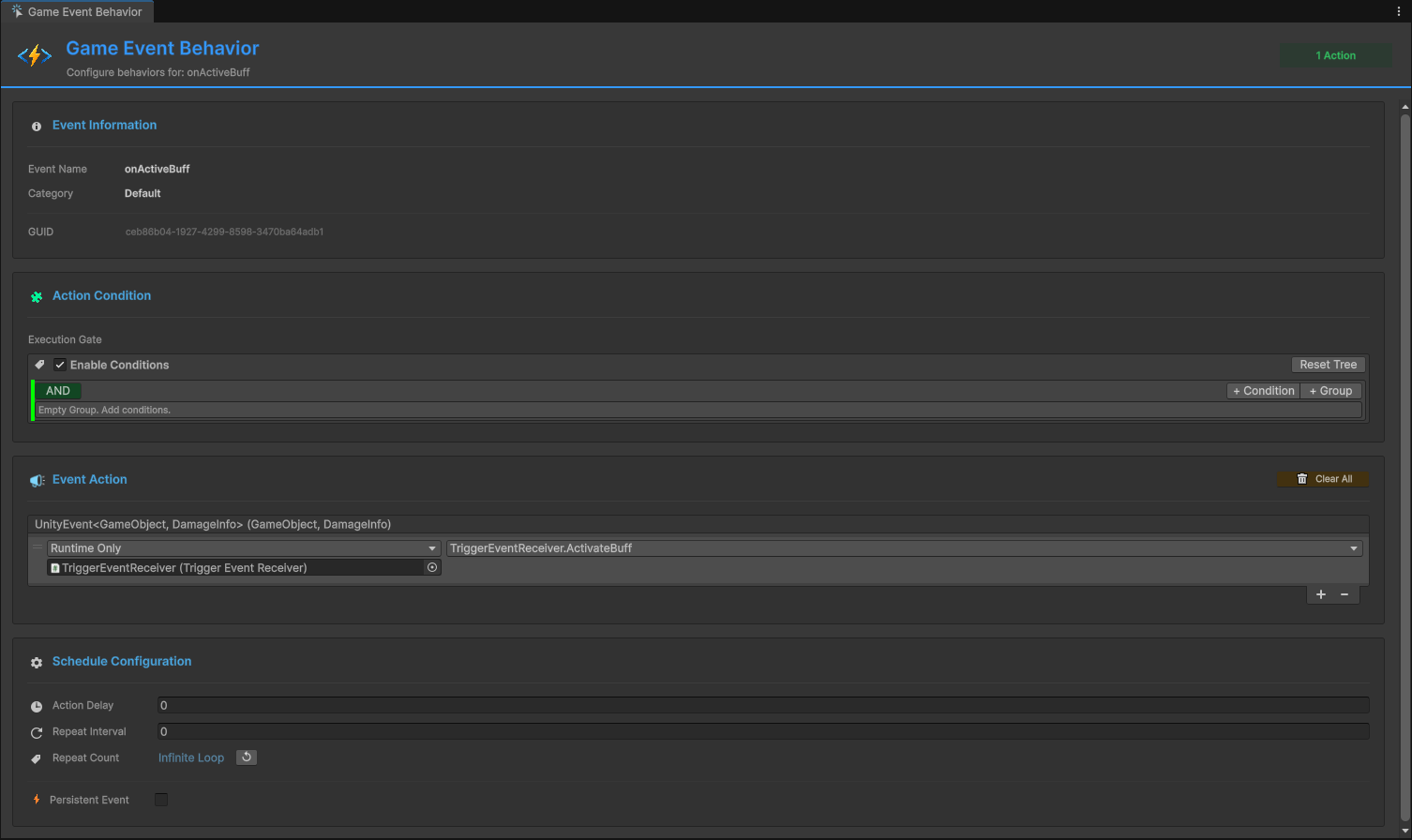
🚀 Opening the Behavior Window
Access from the Game Event Editor:
Game Event Editor → Click Behavior Button (colored pill) on any event row
Button Color States:
| Color | Icon | Meaning | Details |
|---|---|---|---|
| 🟢 Green | ✓ | Configured (Inspector) | Has UnityEvent actions in Manager |
| 🔵 Blue | ▶ | Runtime Active (Play Mode) | Has code-based listeners via AddListener() |
| 🟡 Orange | ⚠ | Not Configured | No actions or listeners |
Button Label: Shows event type signature (e.g., <void>, <int>, <GameObject, DamageInfo>)
📋 Window Overview
The Behavior Window has four main sections:
- Event Information - Identity confirmation (name, category, GUID)
- Action Condition - Visual logic tree (execution gate)
- Event Action - UnityEvent callbacks (what to execute)
- Schedule Configuration - Timing controls (delays, loops, persistence)
1️⃣ Event Information
Read-only summary confirming you're editing the correct event.
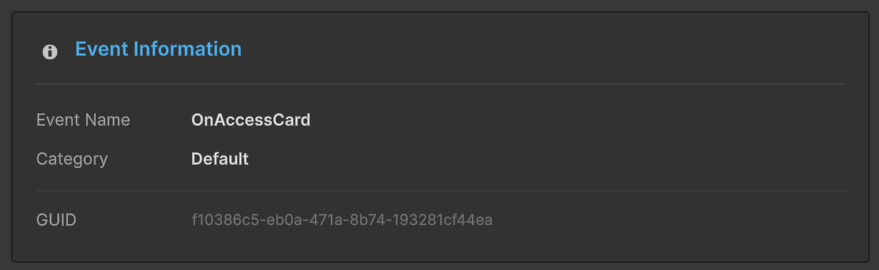
Displayed Data:
- Event Name: Asset name
- Category: Organizational group
- GUID: Unique internal identifier (preserved across renames)
The GUID ensures references stay intact even if you rename the event. This is why safe renaming works in the Editor!
2️⃣ Action Condition (Execution Gate)
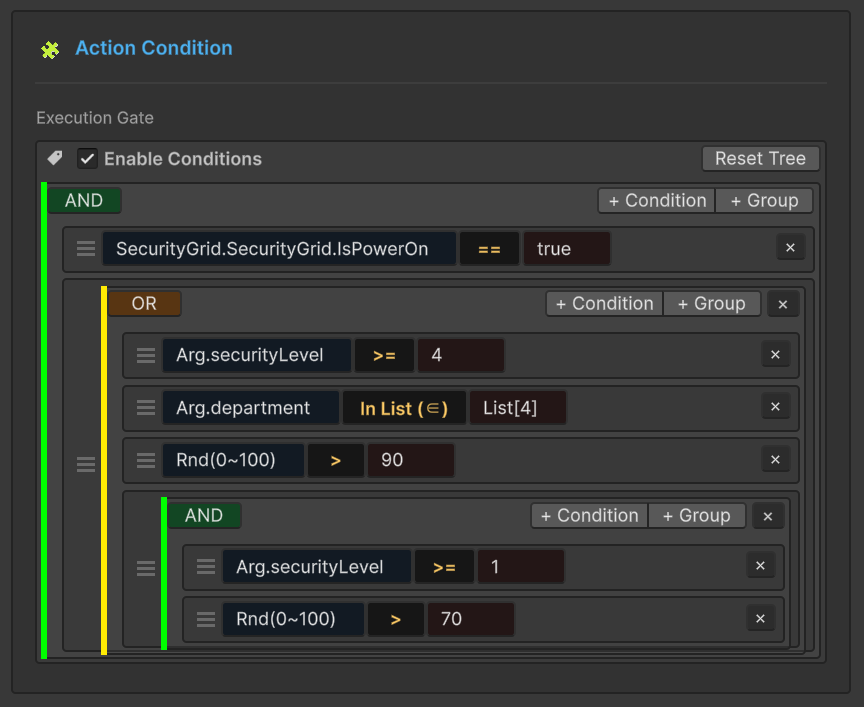
The Logic Engine: Actions only execute if these conditions evaluate to TRUE.
What It Does
Controls whether actions execute based on runtime values:
Visual Logic Tree
Build complex boolean logic without code using:
- Groups: Combine conditions with AND/OR logic
- Comparisons: Individual checks (e.g.,
Health < 20) - Nesting: Groups inside groups (unlimited depth)
Performance
Conditions compile to Expression Trees at initialization. They run as fast as hand-written C# code!
Learn More
The Visual Condition Tree is a powerful system with many features:
- 4 Source Types: Event Argument, Scene Type, Random, Constant
- 10 Comparison Operators: Numeric, String, Collection checks
- Bool Method Support: Use custom
boolmethods as conditions - Drag & Drop Reordering: Organize logic visually
- Type Validation: Auto-detects incompatible comparisons
📖 Complete Guide: Visual Condition Tree
3️⃣ Event Action (Callback Layer)
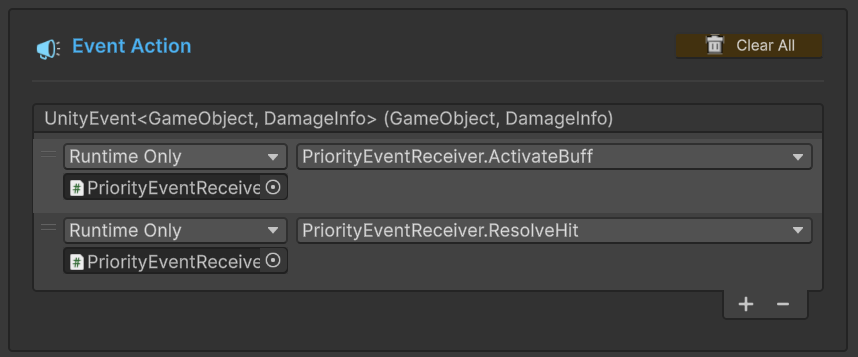
The Action defines the Unity callbacks that execute once an event is triggered and all conditions are met.
🧩 Understanding the UnityEvent Field
The system leverages Unity's native UnityEvent architecture, ensuring seamless integration with your existing MonoBehaviours and UI components.
🔘 For Parameterless Events (GameEvent)
Standard trigger-only logic.
| Type | Backend Field | Compatibility |
|---|---|---|
| Logic | UnityEvent (void) | 🟢 Accepts any zero-parameter method. |
Example: OnGameStart ➔ AudioManager.PlayBGM(), UI.FadeIn()
🔢 For Single Parameter Events (GameEvent<T>)
Payload-driven logic. Passes data directly to the listener.
| Type | Backend Field | Compatibility |
|---|---|---|
| Logic | UnityEvent<T> | 🟡 Accepts methods with one parameter of type T. |
Example: OnHealthChanged(float) ➔ HealthBar.UpdateFill(float)
👥 For Sender Events (GameEvent<TSender, TArgs>)
Context-aware logic. Passes both the source and the data payload.
| Type | Backend Field | Compatibility |
|---|---|---|
| Logic | UnityEvent<TSender, TArgs> | 🔵 Accepts methods with two parameters. |
Example: OnDamage(GameObject, int) ➔ VFXManager.SpawnAt(GameObject.pos), Popup.Show(int)
Because we use Native UnityEvents, you can assign listeners directly in the Inspector or via code using AddListener(). It supports both Static and Dynamic calls.
The inspector UI will automatically filter the method list to only show functions that match the event's signature, preventing runtime errors.
➕ Adding Actions (Workflow)
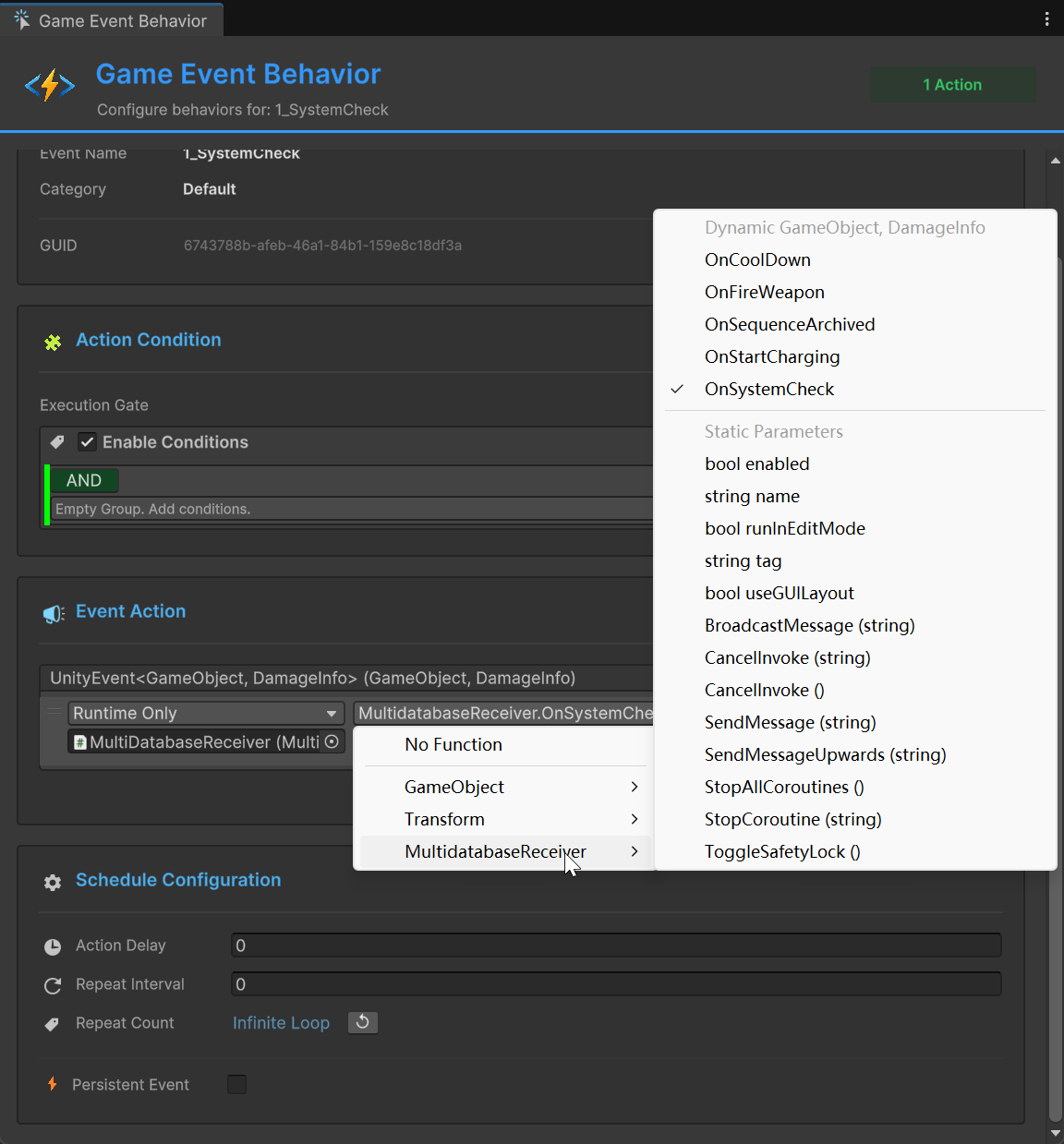
Follow these three simple steps to connect your logic via the Unity Inspector.
1️⃣ Assign Target Object
Drag and drop the GameObject or Component that contains your logic into the Object slot.
- 🖱️ Action: Drag from Hierarchy ➔ Drop into the empty slot.
- 📦 Result: The field now references the specific instance of your script.
2️⃣ Select Callback Method
Click the Function Dropdown to browse all public methods available on the assigned object.
- 🔍 Action: Click No Function ➔ Navigate to your Script/Component.
- ⚡ Tip: Only methods that match the Event Signature (e.g., void, int) will appear at the top for easy selection.
3️⃣ Define Parameter Mapping
Decide whether to use the event's live data or a fixed value.
- ⚖️ Dynamic Call: Uses the runtime value sent by the event (e.g., the actual damage dealt).
- ⚙️ Static Parameters: Uses a fixed value you define manually in the Inspector.
💡 Dynamic vs. Static: Which one to choose?
| Mode | Visual Icon | Best For... |
|---|---|---|
| Dynamic | 🚀 | Real-time data (e.g., Updating a Health Bar with current HP). |
| Static | 📌 | Fixed triggers (e.g., Logging "Button Clicked" to the console). |
In the dropdown, Dynamic methods are always listed at the top of the menu. If you don't see your method there, check if the parameter types match exactly!
Dynamic vs Static Functions
Dynamic (with event data):
// Receives event parameter(s)
public void TakeDamage(float amount) {
    health -= amount;
}

// For Sender events
public void OnDamageReceived(GameObject attacker, DamageInfo info) {
    // Use both sender and args
}
Static (ignores event data):
// No parameters needed
public void PlaySound() {
    audioSource.Play();
}
When to Use Each:
| Use Dynamic When | Use Static When |
|---|---|
| You need the event's data | Just need notification |
| Processing float/int values | Playing sounds/effects |
| Checking sender reference | Triggering animations |
| Data-driven reactions | State changes |
Multiple Actions & Priority
Add Multiple: Click + repeatedly to add more actions.
Execution Order: Top to bottom.
Reordering: Drag the ☰ handle on the left of each action.
Example:
📜 LogDamageEvent() ➔
    🥇 First (Metadata/Logging)
🎵 PlayHitSound() ➔
    🥈 Second (Audio/VFX Feedback)
📊 UpdateHealthBar(float) ➔
    🥉 Third (UI/Visual Representation)
🏁 CheckDeathCondition() ➔
    🏆 Final (Game State Logic)
Clear All Actions
Click "Clear All" button (top-right) to remove all actions at once.
⚠️ Shows confirmation: "Are you sure?"
4️⃣ Schedule Configuration
The Schedule layer determines when and how often your actions are executed after an event is raised.
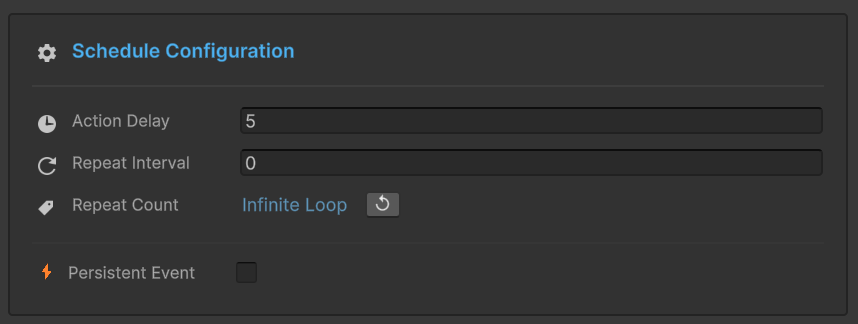
- ⏱️ Action Delay
- 🔄 Repeat Interval
- 🔢 Repeat Count
- 🛡️ Persistent Event
Action Delay
Time Offset. Introduces a gap between the event trigger and the actual execution.
- 🕒 Value: float (Seconds)
- 🎯 Purpose: Synchronize with animations, VFX, or delayed game logic.
How It Works:
- 🔔 Event Raised ➔ The signal is received.
- ⏳ Delaying ➔ System waits for the specified X seconds.
- 🔍 Condition Check ➔ Re-validates conditions after the wait.
- 🚀 Execution ➔ Actions fire only if conditions still pass.
Repeat Interval
Automatic Looping. Enables the event to re-fire periodically without manual intervention.
- 🕒 Parameter: float (Seconds)
- 🔄 Logic: Determines the "tick rate" of the repeat cycle.
Value Mapping:
- 0.0s ➔ 🚫 Disabled (Single-shot execution)
- > 0s ➔ 🔁 Active Loop (Executes every X seconds)
If both Delay and Interval are set, the first execution respects the Delay, and subsequent repeats follow the Interval.
Repeat Count
Lifecycle Control. Limits the number of times an event can repeat.
Configuration Guide:
| Value | Behavior | Total Executions |
|---|---|---|
| 0 | No Repeats | 1 (Initial only) |
| N | Finite Loop | 1 + N |
| -1 | Infinite Loop ♾️ | Until stopped/destroyed |
UI Indicator: When set to -1, a ↺ Reset button appears. Click it to quickly revert the count back to 1.
Persistent Event
Scene Survival. Determines if the event object survives when a new Unity scene is loaded.
🔳 Unchecked (Default): Event is destroyed on scene load (Standard behavior).
☑️ Checked: Behaves like DontDestroyOnLoad.
Best Use Cases:
| ✅ Use Persistent For | ❌ Don't Use For |
|---|---|
| 🎵 Global BGM Manager | 🏰 Level-Specific Puzzles |
| 💾 Save/Load System | 👾 Scene-Specific AI Pathing |
| 🏆 Achievement Trackers | 🖼️ Local Menu Animations |
| 🌐 Multiplayer State | 🔦 Temporary Room Lighting |
Persistent events cannot maintain references to scene-specific objects after a transition. You must re-bind new scene objects to the persistent event via Dependency Injection or a Service Locator after OnSceneLoaded.
❓ Troubleshooting
Actions Not Executing
Problem: Event fires but nothing happens.
Checklist:
✅ Check Conditions:
1. Are conditions enabled? (toggle in condition section)
2. Do conditions evaluate to TRUE?
3. Test condition logic - see Visual Condition Tree guide
4. Add Debug.Log() to verify values
✅ Check Actions:
1. Is UnityEvent field empty? Add actions!
2. Is target GameObject destroyed?
3. Is target Component disabled?
4. Check Console for errors
✅ Check Schedule:
1. Is Action Delay too long?
2. Is Repeat Interval causing confusion?
3. Is event Persistent when it shouldn't be?
"Field Not Found" Warning
Problem: Field 'IntGameEventAction' not found.
Cause: Event type missing its binding code.
Solution:
Click "Force Rebuild All (Fix Missing Bindings)" button.
This regenerates all binding fields:
Assets/TinyGiantsData/GameEventSystem/CodeGen/Basic/
└─ IntGameEvent.cs (regenerated with binding field)
After Compilation: Reopen Behavior Window.
Actions Fire Multiple Times
Problem: Actions execute more than expected.
Common Causes:
Cause 1: Repeat Settings
Check:
- Repeat Interval > 0?
- Repeat Count > 0?

If yes, event is looping (intentional or accidental)
Cause 2: Multiple Event Raises
Event fires multiple times in code:
  OnHealthChanged.Raise(newHealth);  ← Called repeatedly

Solution: Ensure event only raises when needed
Cause 3: Multiple Listeners
Same action added multiple times in UnityEvent

Solution: Check action list, remove duplicates
Now that you understand event behaviors, explore the Visual Condition Tree to master advanced conditional logic. Or jump to Flow Editor to build event orchestrations!