Game Event Finder
The Reference Finder is a powerful diagnostic tool that scans your entire active scene to locate every GameObject, Script, and Component that is referencing a specific Game Event.
It answers the critical question: "If I change this event, who will be affected?"
🚀 Accessing the Tool
You can open the Reference Finder from the Game Event Editor
Game Event Editor → Click 🔍 icon on event row
The window opens showing all scene references to that event.
🖼️ Interface Modes
The window supports two visualization modes to suit different inspection needs. You can toggle between them using the toolbar buttons.
List Mode (Flat View)
Displays a straightforward, sortable list of all references.
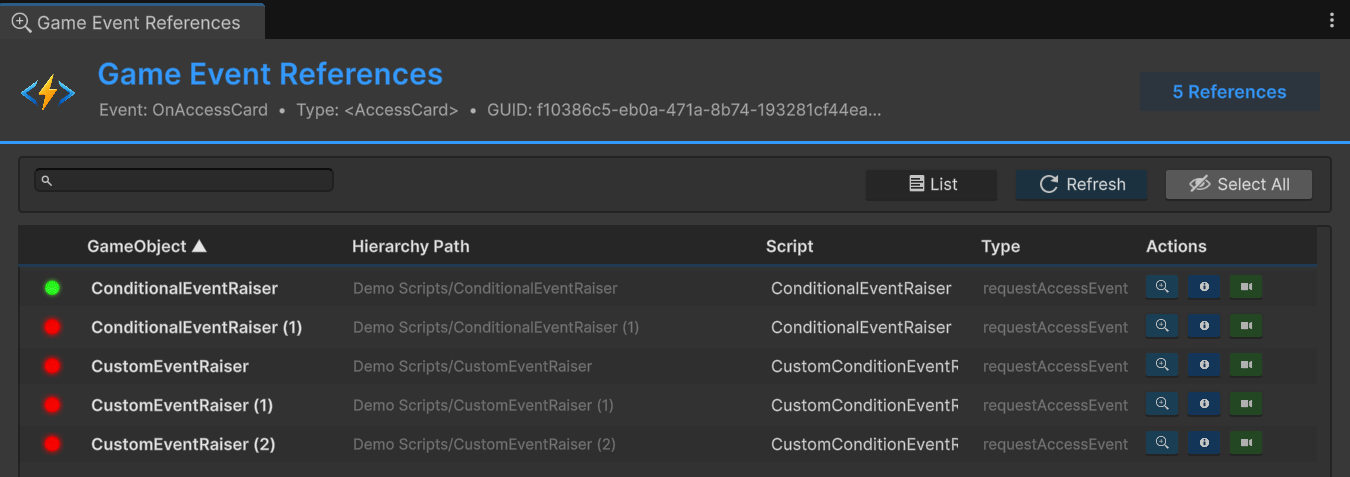
Best for: Quickly scanning total usage or sorting by path/name.
Grouped Mode (Script View)
Groups references by the Script Component that is holding them.
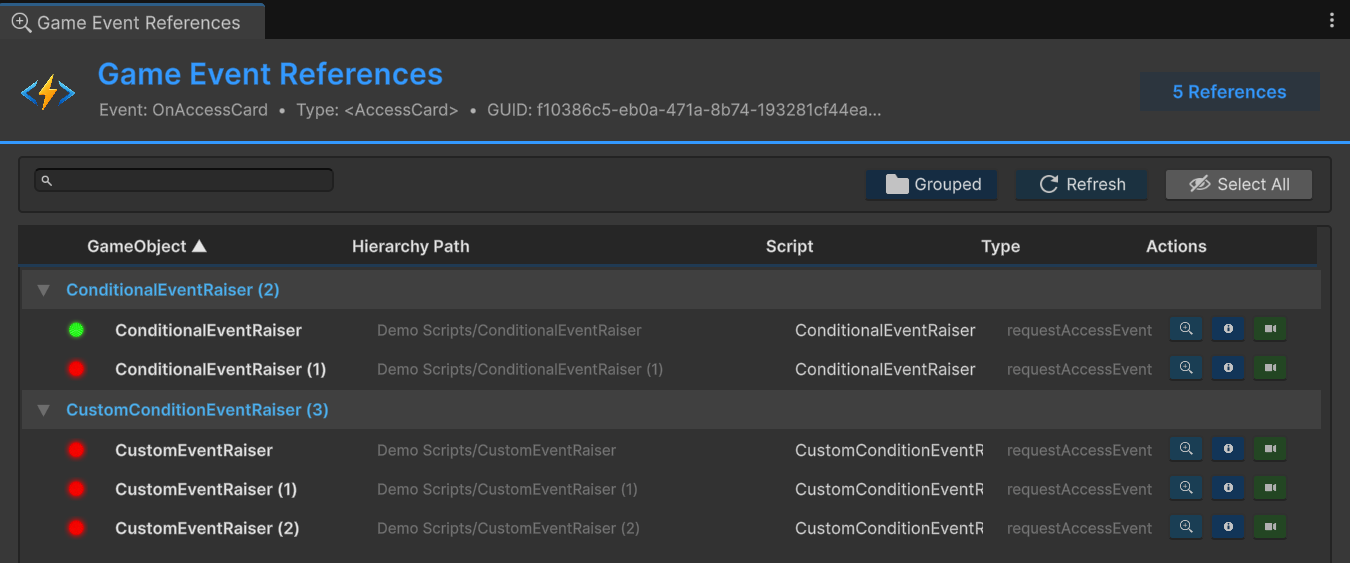
Best for: Understanding which systems rely on this event (e.g., seeing that 5 EnemyAI scripts and 1 GameManager are using it).
Toggle: Click the List / Grouped button in the toolbar to switch between modes.
📊 Status Indicators
Each row provides real-time feedback about the state of the referencing object:
| Icon | Status | Description |
|---|---|---|
| 🟢 | Active | The GameObject is currently active in the hierarchy. The event binding is live. |
| 🔴 | Inactive | The GameObject is disabled. The event binding will not trigger until enabled. |
📝 Reference Details
The columns provide detailed context for every reference:
| Column | Description |
|---|---|
| GameObject | The name of the object in the scene |
| Hierarchy Path | The full breadcrumb path (e.g., Environment/Enemies/Grunt_01) |
| Script | The name of the C# class referencing the event (e.g., PlayerHealth) |
| Type | The variable name in the code (e.g., onDeathEvent) |
The tool uses Reflection to scan all public and private fields on your MonoBehaviours. It finds references even if they are buried in private serialized fields!
🔍 Search & Sort
Search Bar: Type to filter references by GameObject name, hierarchy path, script name, or field name. Supports partial matching.
Sortable Columns: Click any column header to sort by that column. Click again to reverse the sort order.
⚡ Quick Actions
The Actions column on the right provides three powerful navigation tools to jump instantly to the target object.
| Button | Icon | Action | Use Case |
|---|---|---|---|
| Ping | 🔍 | Ping in Hierarchy | Flashes the object in the Hierarchy window to show its location without changing selection |
| Focus | 📋 | Focus in Inspector | Selects the object and instantly brings the Inspector into focus, allowing you to edit the script immediately |
| Frame | 🎥 | Frame in Scene | Selects the object and moves the Scene View camera to frame it perfectly |
🛠️ Toolbar Features
The toolbar provides additional controls for managing the reference view:
Refresh Button (🔄): Re-scan the current scene to update the reference list. Useful after making changes to your scene.
Select All Button (👁️): Selects all referenced GameObjects in the Hierarchy at once. Useful for batch operations.
List/Grouped Toggle (📁 / 📄): Switch between flat list view and grouped script view.
💡 Practical Use Cases
Before Refactoring
Question: "Which objects will break if I rename or delete this event?"
Answer: Open the Finder to see all references before making changes. Update each reference accordingly.
Debugging
Problem: "My event isn't firing as expected."
Solution: Use the Finder to verify that references exist on active GameObjects. Check the status indicators (🟢/🔴) to ensure objects are enabled.
Cleanup & Optimization
Goal: "Remove unused events to clean up the project."
Process: Open the Finder for each event. If it shows "0 References", the event is safe to delete from that scene.
Team Documentation
Need: "Document which systems use specific events for team members."
Result: The Finder provides a complete list of event usage that can be screenshotted or documented.
❓ Troubleshooting
No References Found
Possible Causes:
- The event is not used in the current scene
- References exist in other scenes (Finder only scans active scene)
- Event is used only through code via
AddListener()(not detectable by Reflection scan) - References exist in prefabs that aren't instantiated in the scene
Solution: Check other scenes or use Unity's built-in "Find References in Scene" on the event asset.
Inactive References
Cause: GameObject is disabled in the hierarchy.
Impact: The event binding exists but won't trigger until the GameObject is enabled.
Action: Enable the GameObject or verify this is intentional behavior (e.g., pooled objects).
Reference Count Mismatch
Common Reasons:
- Each prefab instance counts as a separate reference
- Multiple fields in the same script each count as individual references
- Disabled GameObjects are included in the count (check status icons)
📖 Workflow Example
Scenario: You're refactoring the damage system and need to change the OnPlayerDamaged event.
Step 1: Open the Game Event Editor
Step 2: Find OnPlayerDamaged event → Click 🔍 icon
Step 3: Review the Finder results:
3 References Found:
├─ PlayerHealth (Script) - Active 🟢
├─ UIHealthBar (Script) - Active 🟢
└─ DeathScreen (Script) - Inactive 🔴
Step 4: Use Quick Actions to navigate to each reference:
- Click 🔍 Ping to locate in Hierarchy
- Click 📋 Focus to open in Inspector
- Update each reference as needed
Step 5: Safely complete refactoring knowing all usage points
🔗 Related Tools
Finder vs Editor:
| Tool | Scope | Best For |
|---|---|---|
| Game Event Editor | All events in project | Browse and manage event library |
| Game Event Finder (this tool) | Single event references | Impact analysis and debugging |
Always check the Finder before deleting or renaming an event. Even events showing "0 References" in the current scene might be used in other scenes or through code-based listeners.
The Finder scans the active scene only. To check references across multiple scenes:
- Open each scene individually
- Run the Finder in each one
- Compile results manually
For true project-wide asset search, use Unity's built-in "Find References in Scene" feature on the event asset itself.