Raising Game Event
After creating and configuring events, the final step is triggering them in your game logic. This page shows how Game Events work and how to raise them in your scripts.
- ✅ Create events → Game Event Creator
- ✅ Configure actions → Game Event Behavior
- ✅ Raise events ← You are here
🎯 How Game Events Work
Game Events decouple event raising from action execution:
Traditional Approach:
// ❌ Tightly coupled - door logic knows about sound, animation, etc.
public class Door : MonoBehaviour
{
    public AudioSource audioSource;
    public Animator animator;
    public UIManager uiManager;

    public void Open()
    {
        audioSource.Play();
        animator.SetTrigger("Open");
        uiManager.ShowNotification("Door opened");
        // Logic scattered across multiple dependencies
    }
}
Game Event Approach:
// ✅ Decoupled - door only knows "something happened"
public class Door : MonoBehaviour
{
    [GameEventDropdown]
    public GameEvent onDoorOpened;

    public void Open()
    {
        onDoorOpened.Raise();  // Actions configured in Inspector
    }
}
Key Difference: Actions (sound, animation, UI) are configured visually in Event Behavior, not hardcoded in scripts.
📝 Basic Usage: Raising Events
Step 1: Reference the Event in Your Script
using TinyGiants.GameEventSystem.Runtime;
using UnityEngine;

public class DoorController : MonoBehaviour
{
    [GameEventDropdown]  // Smart Inspector picker
    public GameEvent onDoorOpened;

    [GameEventDropdown]
    public GameEvent onDoorClosed;

    public void OpenDoor()
    {
        // Your door logic here
        onDoorOpened.Raise();  // Trigger the event
    }

    public void CloseDoor()
    {
        // Your door logic here
        onDoorClosed.Raise();
    }
}
Step 2: Assign Event in Inspector
The [GameEventDropdown] attribute provides a type-safe searchable dropdown:
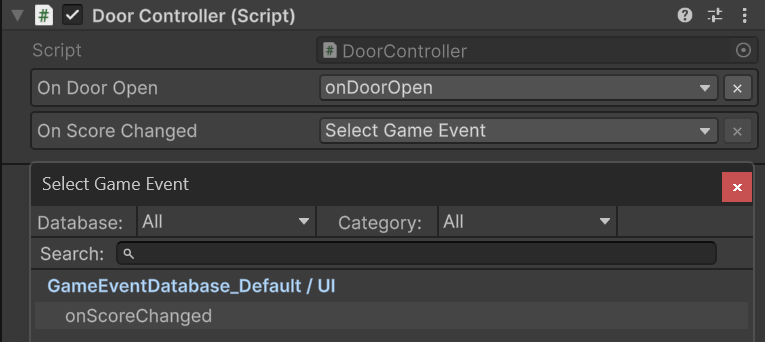
Features:
- 🔍 Fuzzy Search: Type to filter events by name
- 📁 Categorized: Events grouped by database and category
- 🔒 Type Safety: Only shows compatible event types
- ⚡ Quick Access: No manual asset dragging needed
Alternative: Without [GameEventDropdown]
You can also use a standard public field:
public GameEvent onDoorOpened; // Standard ScriptableObject field
Inspector View:

Workflow:
- Locate event asset in Project window (Event Database)
- Drag & drop into Inspector field
Recommendation: Use [GameEventDropdown] for better workflow—it's faster and type-safe.
🎨 Typed Events (With Arguments)
Events can carry data to actions.
Void Events (No Data)
[GameEventDropdown]
public GameEvent onGameStart;

void Start()
{
    onGameStart.Raise();  // No arguments
}
Single Argument Events
[GameEventDropdown]
public GameEvent<float> onHealthChanged;

private float health = 100f;

public void TakeDamage(float damage)
{
    health -= damage;
    onHealthChanged.Raise(health);  // Pass current health value
}
Type Safety: Dropdown only shows GameEvent<float> events, preventing type mismatches.
Sender + Argument Events
[GameEventDropdown]
public GameEvent<GameObject, DamageInfo> onPlayerDamaged;

public void ApplyDamage(DamageInfo damageInfo)
{
    // Sender = this GameObject, Args = damage info
    onPlayerDamaged.Raise(this.gameObject, damageInfo);
}
Use Case: Actions need to know who triggered the event and what data to process.
🔒 Type Safety in Action
The dropdown automatically filters events based on field type:
public class ScoreManager : MonoBehaviour
{
    [GameEventDropdown]
    public GameEvent<int> onScoreChanged;  // Only shows GameEvent<int>

    [GameEventDropdown]
    public GameEvent<int> onLevelUp;       // Only shows GameEvent<int>

    private int score = 0;

    public void AddScore(int points)
    {
        score += points;
        onScoreChanged.Raise(score);  // Pass integer score
    }
}
Dropdown Filtering:
Available Events for GameEvent<int>:
  ✅ OnScoreChanged (int)
  ✅ OnLevelUp (int)
  ✅ OnComboMultiplier (int)
  ❌ OnPlayerDeath (void) — Filtered out (wrong type)
  ❌ OnDamage (float) — Filtered out (wrong type)
Why This Matters: Catches type errors at edit time, not runtime.
🔄 Canceling Scheduled Events
If your event uses delay or repeat settings (configured in Game Event Behavior), you can cancel execution:
[GameEventDropdown]
public GameEvent repeatingSoundEvent;

void StartAmbientSound()
{
    repeatingSoundEvent.Raise();  // Starts repeating (based on Behavior config)
}

void StopAmbientSound()
{
    repeatingSoundEvent.Cancel();  // Stops scheduled execution
}
Use Cases:
- Player leaves trigger zone → Cancel ambient sounds
- Game paused → Cancel timed events
- Object destroyed → Cleanup scheduled actions
🔧 Advanced: Inspector Listener Control
Rarely needed, but you can disable Inspector-configured actions at runtime:
[GameEventDropdown]
public GameEvent myEvent;

void DisableCutsceneUI()
{
    myEvent.SetInspectorListenersActive(false);
    // Inspector actions won't fire, only code listeners
}

void EnableCutsceneUI()
{
    myEvent.SetInspectorListenersActive(true);
    // Inspector actions fire again
}
Use Cases:
- Temporarily disable UI updates during cutscenes
- Switch between action sets based on game state
💡 Complete Workflow Example
Let's build a complete door system using the visual workflow.
Step 1: Create Events

- Create
OnDoorOpened(void event) - Create
OnDoorClosed(void event)
Step 2: Configure Actions
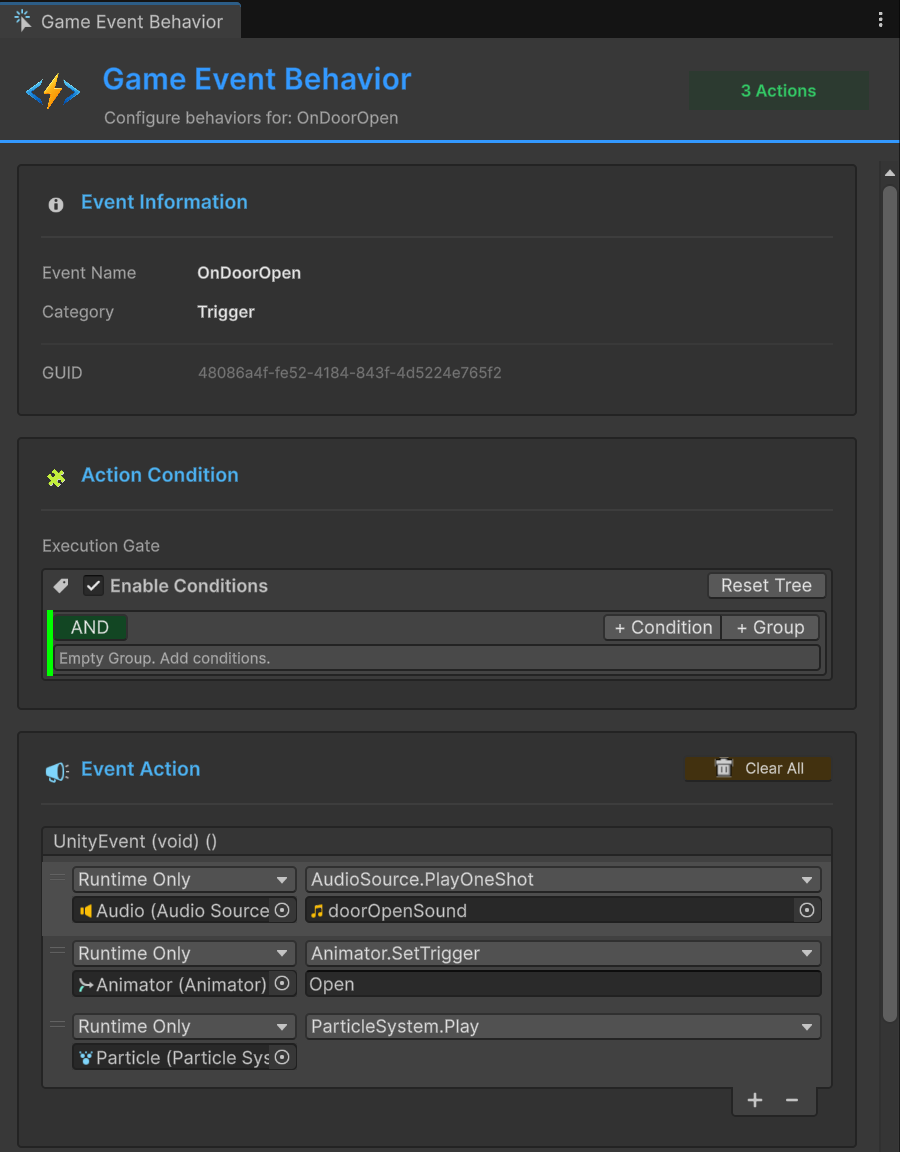
OnDoorOpened Event:
- Action:
AudioSource.PlayOneShot(doorOpenSound) - Action:
Animator.SetTrigger("Open") - Action:
ParticleSystem.Play()(dust effect)
OnDoorClosed Event:
- Action:
AudioSource.PlayOneShot(doorCloseSound) - Action:
Animator.SetTrigger("Close")
Step 3: Write the Script
using TinyGiants.GameEventSystem.Runtime;
using UnityEngine;

public class DoorController : MonoBehaviour
{
    [GameEventDropdown]
    public GameEvent onDoorOpened;

    [GameEventDropdown]
    public GameEvent onDoorClosed;

    private bool isOpen = false;

    public void ToggleDoor()
    {
        if (isOpen)
        {
            isOpen = false;
            onDoorClosed.Raise();  // All actions fire automatically
        }
        else
        {
            isOpen = true;
            onDoorOpened.Raise();  // All actions fire automatically
        }
    }

    // This method can be called from:
    // - Button OnClick in Inspector
    // - Collision/Trigger detection
    // - Other game systems
}
Step 4: Assign Events in Inspector
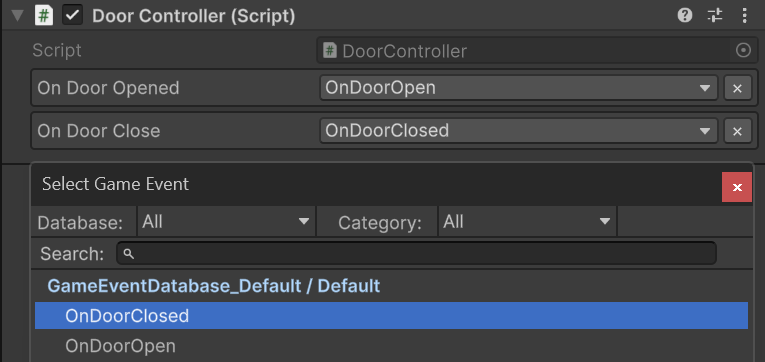
- Select
DoorControllerGameObject - Use dropdown to assign
OnDoorOpenedevent - Use dropdown to assign
OnDoorClosedevent
Done! No sound, animation, or VFX references in script—all configured visually.
🆚 Why Better Than UnityEvents?
Traditional UnityEvent approach has limitations that Game Events solve:
Traditional UnityEvent Limitations
// ❌ Problem 1: Configuration scattered across many GameObjects
public class Button1 : MonoBehaviour
{
    public UnityEvent onClick;  // Configured in Button1's Inspector
}

public class Button2 : MonoBehaviour
{
    public UnityEvent onClick;  // Configured in Button2's Inspector
}

// ❌ Problem 2: Hard to find all usages
// Need to manually search every GameObject in scene

// ❌ Problem 3: No central control
// Can't globally enable/disable button sounds

// ❌ Problem 4: Duplication
// Same sound/VFX setup repeated in 50 buttons
Game Event Advantages
// ✅ Solution: All buttons raise the same event
public class ButtonController : MonoBehaviour
{
    [GameEventDropdown]
    public GameEvent onButtonClick;  // Same event for all buttons

    public void OnClick()
    {
        onButtonClick.Raise();
    }
}
Benefits:
| Feature | UnityEvent | Game Event |
|---|---|---|
| Centralized Config | ❌ Per GameObject | ✅ One Event Behavior |
| Find All Usage | ❌ Manual search | ✅ Event Finder |
| Global Control | ❌ Change 50 objects | ✅ Change one event |
| Reusability | ❌ Copy-paste | ✅ Reference same asset |
| Conditional Logic | ❌ Code required | ✅ Visual condition tree |
| Debugging | ❌ Inspector only | ✅ Flow Graph visualization |
When to Use Each
Use UnityEvents:
- Simple one-off callbacks (e.g., tutorial button)
- Component-specific logic (e.g., slider updates its own label)
- No need for reusability
Use Game Events:
- Reusable logic (e.g., all button clicks play same sound)
- Complex sequences (e.g., cutscenes, door puzzles)
- Need central control (e.g., mute all UI sounds)
- Want visual debugging (Flow Graph)
❓ Troubleshooting
Dropdown Shows "Manager Missing"
Cause: No GameEventManager in scene.
Solution:
Open Game Event System via the Unity toolbar:
Tools > TinyGiants > Game Event System
Click the "Initialize Event System" button, creating a Game Event Manager GameObject (Singleton) in your scene.
Dropdown Shows "No Active Databases"
Cause: No databases assigned in GameEventManager.
Solution:
- Select
GameEventManagerin scene - Inspector → Databases section
- Add your event databases
Dropdown Shows "No Matching Events"
Cause: No events match the field type.
Example:
[GameEventDropdown]
public GameEvent<string> textEvent;  // Needs GameEvent<string>

// But your databases only have:
// - GameEvent (void)
// - GameEvent<int>
// - GameEvent<float>

Result: No matching events!
Solution: Create events of the correct type using Game Event Creator.
Event Doesn't Fire
Checklist:
- ✅ Is event asset assigned in Inspector?
- ✅ Is
Raise()being called? (add Debug.Log to verify) - ✅ Are actions configured in Game Event Behavior?
- ✅ Are conditions passing? (check condition tree)
- ✅ Is GameEventManager in scene?
You've now learned the complete visual workflow:
- ✅ Create events in Event Creator
- ✅ Configure actions in Event Behavior
- ✅ Raise events with UnityEvents or
GameEventDropdown
Result: Decoupled, maintainable, designer-friendly game logic!
This page covers visual workflow (raising events in scripts with Inspector assignment). For advanced code techniques (runtime listeners, conditional triggers, event chains), see Runtime API.