Game Event Manager
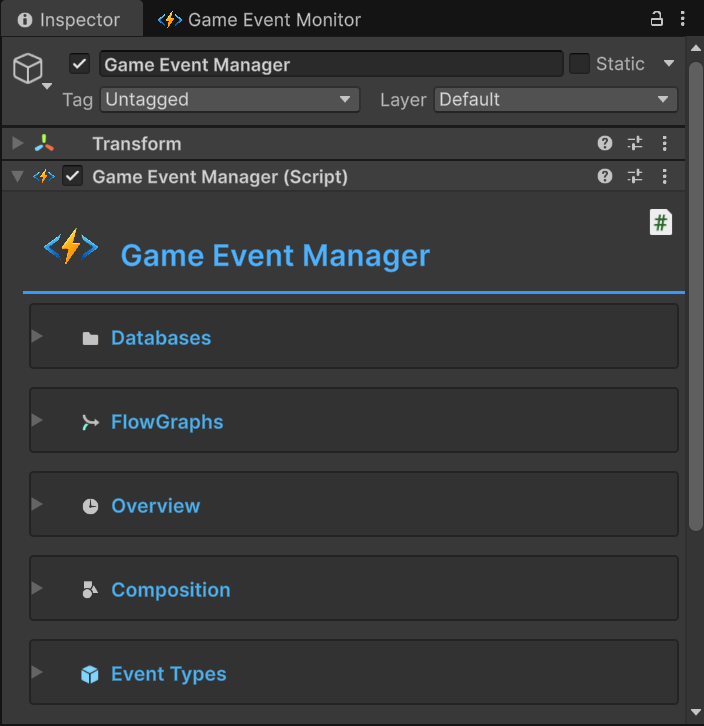
The Game Event Manager is the runtime brain of the entire system. It is responsible for loading your data (Events & Flows) into memory, managing their lifecycle, and providing real-time telemetry.
Unlike the Dashboard (which is a tool for creating), the Manager is the container that holds your data.
🏗️ The Data Architecture
Before diving into the UI, it is critical to understand how this system stores data.
Storage Model
- Container-Based Storage: Events are not loose files. They are stored as Sub-Assets inside a parent Database Asset (
.asset). - Separation of Concerns:
- Databases: Store Event Definitions (Identity, Name, Type).
- Flow Graphs: Store Logic Nodes (Triggers, Chains, Connections).
- The "Sanctuary": By default, all assets are created in
Assets/TinyGiantsData/GameEventSystem/.
Because events are sub-assets, NEVER delete them directly from the Project view by expanding the Database asset.
Correct Workflow:
- ✅ To Delete an Event: Use the Game Event Editor
- ✅ To Delete a Flow: Use the Game Event Flow Editor
Why? Manual deletion breaks GUID references and corrupts the database integrity.
🗃️ Database Management
This section controls which sets of events are active in your scene. The system supports Multi-Database Architecture, allowing you to split events (e.g., "Core", "Combat", "UI") and load them as needed.
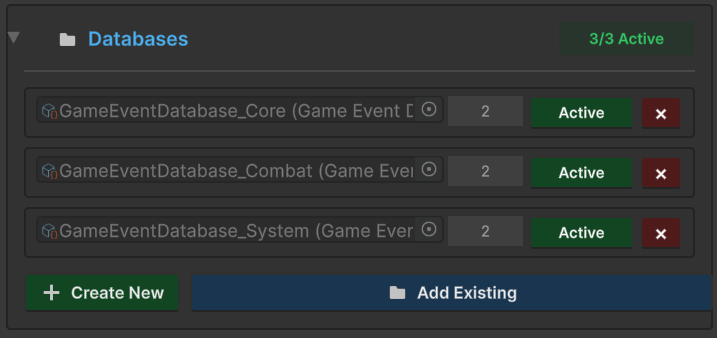
Management Actions
| Action | Description |
|---|---|
| Active / Inactive | Toggles whether this database is loaded. Inactive databases will not resolve event lookups at runtime. |
| Remove (×) | Removes the database from this list only. It DOES NOT delete the asset file from your project. |
| + Create New | Creates a new .asset database file in the TinyGiantsData/GameEventSystem/Database folder and adds it here. |
| 📂 Add Existing | Opens a file picker to add a database you created previously (This operation will search for all database assets under Assets directory and display them in the drop-down list). |
Understanding Active vs Inactive
Active Database (Green Badge):
- ✅ Events are available for binding in Inspectors
- ✅ Events can be triggered at runtime
- ✅ Appears in Game Event Editor searches
Inactive Database (Yellow Badge):
- ⏸️ Temporarily disabled without removing from list
- 🔒 Events cannot be triggered or bound
- 💡 Useful for seasonal content or DLC events
You can also create databases directly in the Project window:
Right-Click → Create → TinyGiants → Game Event System → Game Event Database
Then add it to the Manager via "Add Existing" button.
🕸️ Flow Graph Management
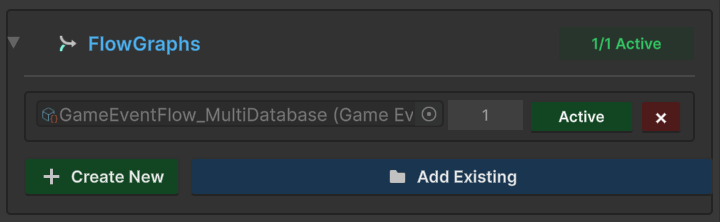
Similar to databases, this section manages your Visual Logic Containers.
What is a Flow Container?
A Flow Container is a ScriptableObject that holds multiple "Flow Graphs" (visual event sequences).
Common Workflow:
- Global Flow: Persistent logic active across all scenes (e.g., UI events, audio triggers)
- Level-Specific Flows: Load/unload per scene (e.g., boss fight sequences, tutorial steps)
Management Actions
Same controls as databases:
- Create New: Generate a new flow container asset
- Add Existing: Register a previously created flow container
- Active/Inactive: Enable or disable flow execution
- Remove (×): Unregister from manager (doesn't delete the asset)
Flow graphs themselves are edited in the Game Event Flow Editor, not here. The Manager only controls which flows are loaded.
📊 Live Statistics (Telemetry)
The Inspector provides three dedicated panels to monitor the health and composition of your event system.
1. Overview Stats
Tracks the binding status of your events.
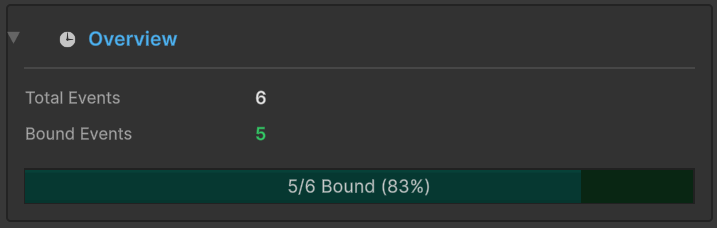
| Metric | Description |
|---|---|
| Total Events | The sum of all events across all active databases. |
| Bound Events | The number of events that are currently configured in the Inspector (Visual Binding). |
| Runtime Binding | Events bound via code (AddListener) are tracked separately in the Runtime Monitor. |
Progress Bar: Shows the percentage of events that have been bound (configured with listeners).
During Play Mode, the statistics panel automatically updates to reflect runtime listener registrations. The bound events count will change as you call AddListener() in your code.
2. Composition
Shows the complexity distribution of your event architecture.
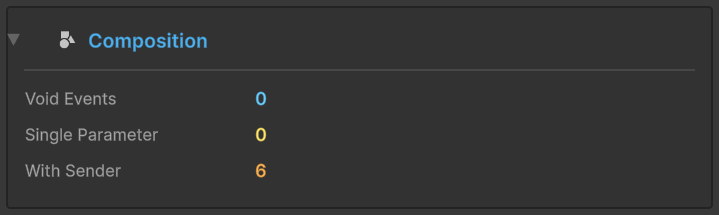
| Category | Definition | Example Use Cases |
|---|---|---|
| Void Events | Simple signals (no parameters) | OnGameStart, OnPause, OnButtonClick |
| Single Parameter | Typed payload events | OnHealthChanged(float), OnScoreUpdated(int) |
| With Sender | Source-aware events | OnDamage(GameObject sender, float amount) |
Why This Matters:
- High percentage of Void events = Simple, easy-to-maintain architecture
- High percentage of Sender events = Complex, data-rich system with detailed tracking
3. Event Types Registry
A live registry of every data type currently compiled and supported by your project.
Built-in Types (Out of the Box)
The system comes pre-loaded with native support for 32 standard types, categorized by usage:
📋 View Supported Built-in Types
| C# Types | Math | Components | Assets |
|---|---|---|---|
int | Vector2 | GameObject | Sprite |
float | Vector3 | Transform | Texture2D |
double | Vector4 | RectTransform | Material |
bool | Vector2Int | Rigidbody | AudioClip |
string | Vector3Int | Rigidbody2D | AnimationClip |
byte | Quaternion | Collider | |
long | Rect | Collider2D | |
char | Bounds | Camera | |
Color | Light | ||
ParticleSystem |
What You Can Do: Create events using any of these types immediately, without code generation.
// Examples of built-in type events
[GameEventDropdown] GameEvent<int> OnScoreChanged;
[GameEventDropdown] GameEvent<Vector3> OnPositionUpdated;
[GameEventDropdown] GameEvent<GameObject> OnObjectSpawned;
Custom & Sender Types
When you create an event with a Custom Class (e.g., PlayerStats) or a Sender Event (e.g., <GameObject, DamageInfo>), those types will automatically appear in this list after code generation.
Example Display:
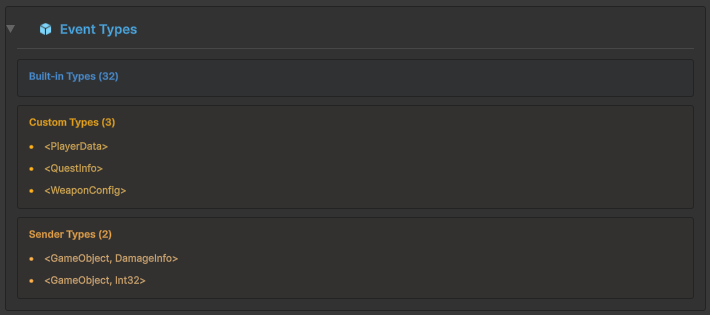
Creation Process:
- Write your custom class in C#
- Use Game Event Creator to create event(generate code & event sub-asset)
- Type appears in this registry
- Now you can create event assets using your custom type
🛠 Best Practices
✅ DO
Split Your Databases
Keep a modular structure for better organization:
📁 Database/
├─ Global_DB.asset        (Core game events)
├─ Combat_DB.asset        (Combat-specific events)
├─ UI_DB.asset            (UI interaction events)
└─ Tutorial_DB.asset      (Tutorial sequence events)
Benefits:
- Clearer organization
- Easier collaboration (different team members work on different databases)
- Better performance (load only what you need)
Keep the Manager in Every Scene
Ensure the GameEventManager object exists in every scene:
- The Manager persists across scenes using
DontDestroyOnLoad - If it's missing, open the Game Event System Window to auto-create it
Use "Add Existing" for Team Collaboration
When working with teammates:
- Teammate creates a database and commits to version control
- You pull the latest changes
- Open Manager Inspector → Click "Add Existing"
- Select the new database
- ✅ GUID references remain intact, no broken links!
❌ DO NOT
Never Delete Assets Manually
❌ WRONG: Project Window → Expand Database Asset → Delete Event Sub-Asset
✅ RIGHT: Game Event Editor → Select Event → Click Delete Button
Why? Manual deletion corrupts the database and breaks all references.
Don't Move to Plugins Folder
Keep your Data folder (TinyGiantsData) outside of the Plugins folder:
✅ Correct: Assets/TinyGiantsData/GameEventSystem/
❌ Wrong:   Assets/Plugins/TinyGiantsData/GameEventSystem/
🔧 Inspector Context Menu
Right-click the GameEventManager component to access utility commands:
Clean Invalid Bindings
Purpose: Remove event bindings that no longer exist in any active database.
When to Use:
- After deleting events via the Game Event Editor
- After removing a database from the manager
- When cleaning up an old project
What It Does: Scans all bindings and removes orphaned references.
Sync All Database Events
Purpose: Synchronize the manager's internal binding list with all events in active databases.
When to Use:
- After importing events from another project
- After adding a new database with many events
- When the binding list seems out of sync
What It Does:
- Adds bindings for new events
- Removes bindings for deleted events
- Preserves existing configurations
❓ Troubleshooting
Manager Object is Missing
Problem: Can't find GameEventManager in the scene hierarchy
Solution:
- Open Game Event System Window via
Tools → TinyGiants → Game Event System - Look for the status bar at the top
- If it shows a blue button, click "Initialize System"
- The manager will be auto-created
Events Not Appearing in Editor
Problem: Can't find my events in dropdown menus or search.
Checklist:
- ✅ Is the database Active (green badge)?
- ✅ Is the database added to the Manager?
- ✅ Are there actually events in the database? (Check in Game Event Editor)
- ✅ Does the Manager GameObject exist in your scene?
Database Appears Corrupted
Problem: Inspector shows errors about "orphaned sub-assets" or database integrity issues.
Recovery:
- Right-click the Manager component
- Select "Clean Invalid Bindings"
- Right-click the database asset in Project window
- Select "Validate Database" (if available)
- Save your scene and restart Unity
Prevention: Always use the Game Event Editor to delete events, never manually.
The Manager is your data container. Think of it like a library: databases are bookshelves, events are books. The Manager decides which bookshelves are open (active) and keeps track of who's reading which books (bindings).