Game Event Creator
Your high-speed event creation wizard. This specialized tool handles batch event generation, automatic code compilation, and ScriptableObject creation—all in one streamlined workflow.
🚀 Opening the Creator
The Creator only opens from the Game Event Editor:
Game Event Editor → Click "+ New Event" button (top-right)
The Creator needs to know which database to add events to. Opening from the Editor ensures proper context.
🗺️ Interface Zones
The window is organized into four functional areas:
| Zone | Location | Purpose |
|---|---|---|
| A. Event Mode Tabs | Top | Switch between Void, Single Parameter, or Sender events |
| B. Configuration Area | Middle | Select types and configure event details |
| C. Events Queue | Bottom | Review pending events before creation |
| D. Status Badge | Top-right | Shows total queued count (e.g., "7 Queued Total") |
🎭 Three Event Modes
Choose the architecture that fits your need:
- 1. Parameterless
- 2. Single Parameter
- 3. With Sender
Parameterless Events
Type: GameEvent (Void)
The simplest signal—no data, just notification.
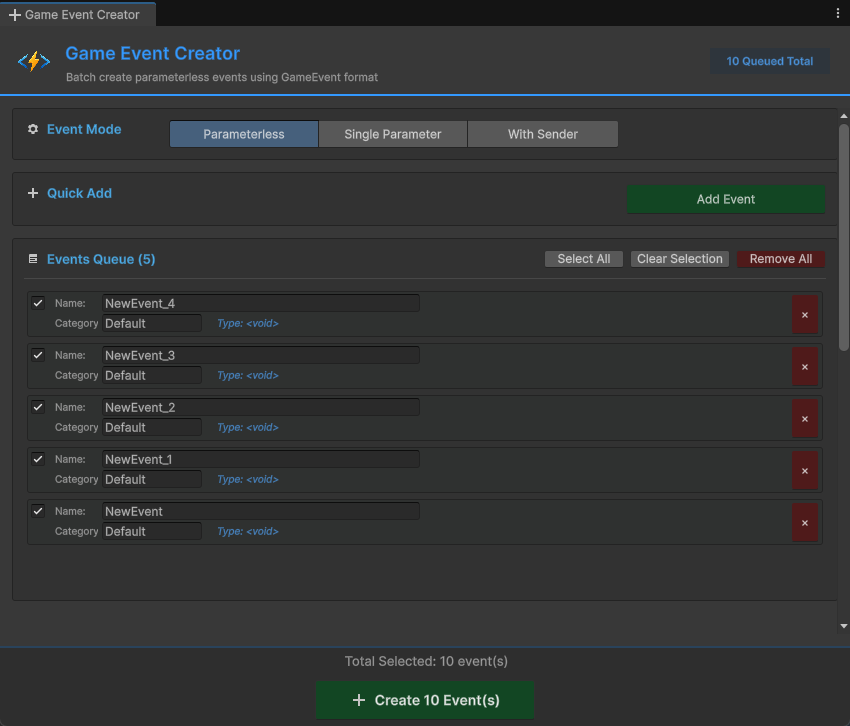
Best For:
🖱️ UI Triggers ➔ OnPauseButtonClick, OnMenuOpen
🌍 Global States ➔ OnGameStart, OnLevelComplete
🏃 Simple Actions ➔ OnJump, OnFire, OnInteract
How to Use:
- Click "Add Event" button
- Event appears in queue with default name "NewEvent"
- Rename it in the queue (e.g., "OnGameStart")
- Set category if desired (e.g., "Core")
- Click "Create X Event(s)" at bottom
No Type Selection Needed: Since it's parameterless, you just click and add.
Single Parameter Events
Type: GameEvent<T>
Carries one piece of data with the notification.
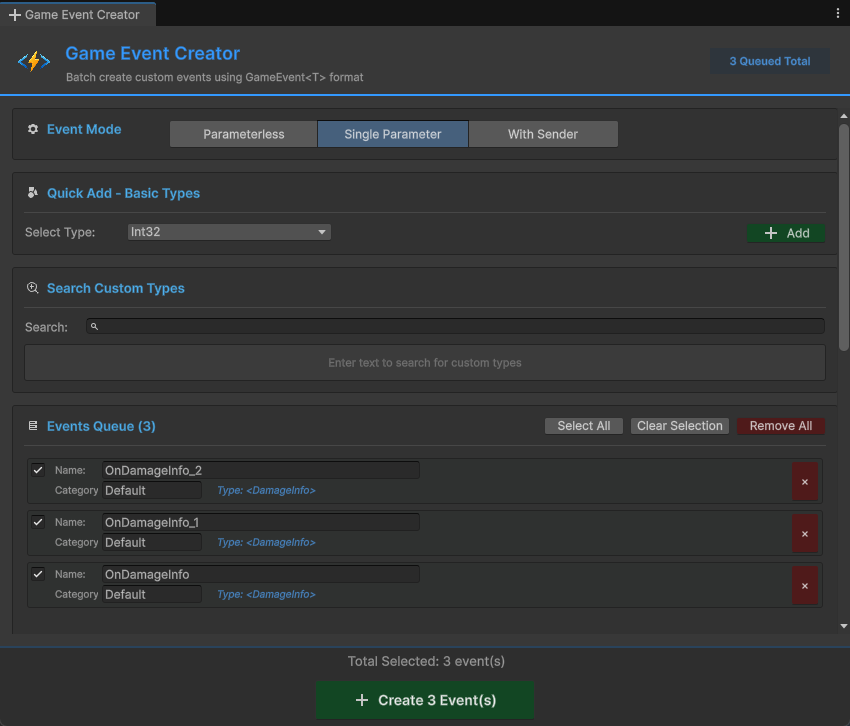
Best For:
📈 Value Changes ➔ OnHealthChanged(float), OnScoreUpdated(int)
🔄 State Updates ➔ OnGameStateChanged(GameState)
📦 Object Events ➔ OnEnemySpawned(GameObject)
💾 Data Sync ➔ OnPlayerDataChanged(PlayerData)
Two Ways to Add:
Method 1: Quick Add - Basic Types
For built-in Unity types (int, float, Vector3, GameObject, etc.):
- Select Type from dropdown (shows all 32 basic types)
- Click "Add" button
- Event added to queue automatically
Available Basic Types:
- C# Primitives:
int,float,bool,string, etc. - Math Types:
Vector2,Vector3,Quaternion,Color, etc. - Components:
GameObject,Transform,Rigidbody, etc. - Assets:
Sprite,Material,AudioClip, etc.
Method 2: Search - Custom Types
For your own C# classes:
- Type in search bar (e.g., "PlayerData")
- System searches all serializable types in your project
- Click "Add" next to your type
- Event added to queue
Search Features:
- ✅ Fuzzy matching (type "plr" finds "PlayerData")
- ✅ Shows namespace for disambiguation
- ✅ Badge shows how many events of this type are queued
- ✅ Green flash effect when adding
Requirements for Custom Types:
// ✅ This works
[System.Serializable]
public class PlayerData {
    public string playerName;
    public int level;
}

// ❌ This won't appear in search
public class NonSerializableClass { } // Missing [Serializable]
Sender Events
Type: GameEvent<TSender, TArgs>
Carries both who fired it (sender) and what happened (argument).
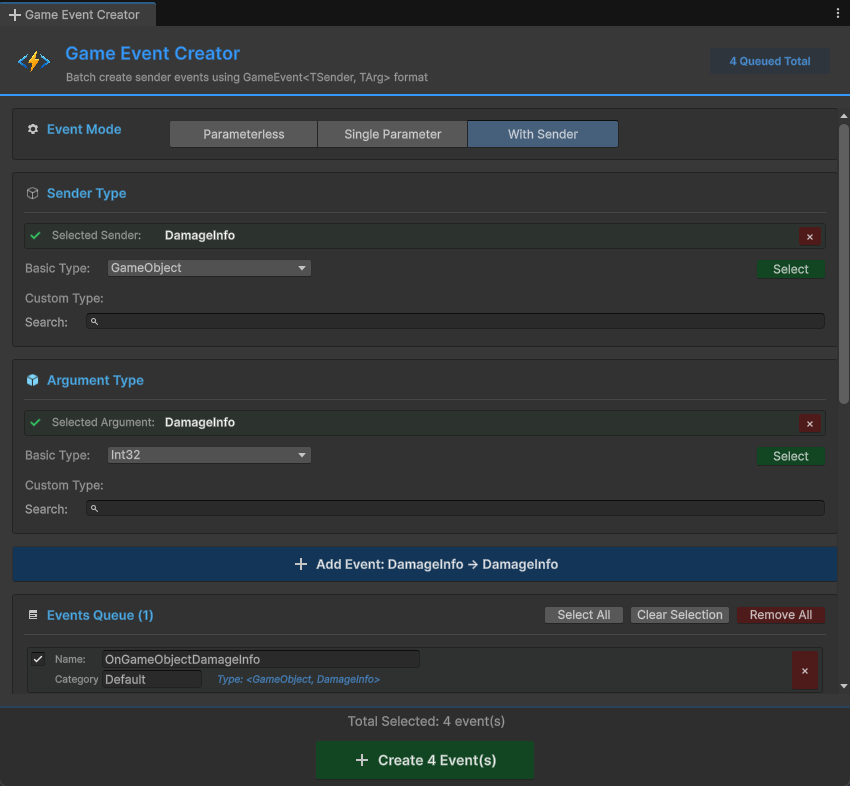
Best For:
⚔️ Combat ➔ OnDamageTaken(GameObject victim, DamageInfo damage)
🤝 Interactions ➔ OnItemPickedUp(Player player, ItemID item)
🌐 Networking ➔ OnPlayerJoined(NetworkPlayer sender, string playerName)
📜 Complex Events ➔ OnQuestCompleted(QuestGiver npc, QuestData quest)
Recommended Pattern:
- TSender = The actor/source (
GameObject,Player,Enemy) - TArgs = The data/payload (
int,DamageInfo,Vector3)
How to Use:
-
Select Sender Type:
- Choose from Basic Types dropdown, OR
- Search for custom type
- Click "Select" when ready
-
Select Argument Type:
- Choose from Basic Types dropdown, OR
- Search for custom type
- Click "Select" when ready
-
Add Event:
- Blue button appears: "Add Event: GameObject → int" (example)
- Click it to add to queue
Selected Type Display:
When you select types, they appear in green boxes:
✅ Selected Sender: GameObject <small>(UnityEngine)</small>
✅ Selected Argument: DamageInfo <small>(YourGame.Combat)</small>
Click the × to clear and choose different types.
📦 Batch Creation Workflow
The Creator's power is batch processing—create many events at once instead of one-by-one.
Step-by-Step Process
1️⃣ Queue Events
Add multiple events across different modes:
🔘 Switch to Parameterless ➔ Add OnGameStart
🔘 Switch to Parameterless ➔ Add OnGamePause
🔢 Switch to Single Parameter(int) ➔ Add OnScoreChanged
🌊 Switch to Single Parameter(float) ➔ Add OnHealthChanged
👥 Switch to Sender <GameObject,int> ➔ Add OnEnemyDamaged

Total in Queue: 5 events pending creation
Visual Feedback:
- Top-right badge updates: "5 Queued Total"
- Each mode shows its own count: "Events Queue (2)"
2️⃣ Review & Configure
In the Events Queue section:
Per Event:
- ☑️ Checkbox: Toggle selection (only selected events will be created)
- Name Field: Rename event (default: "NewEvent", "OnInt", etc.)
- Category Field: Set category for filtering later
- Type Label: Shows event type signature
- × Button: Remove from queue
Bulk Actions:
- Select All: Check all events in current queue
- Clear Selection: Uncheck all events
- Remove All: Clear entire queue (with confirmation)
3️⃣ Execute Creation
Click the big green button at bottom:
+ Create 5 Event(s)
What Happens Next: See the next section ⬇️
⚙️ Understanding the Creation Process
When you click "Create", a sophisticated automation pipeline runs. Here's what happens behind the scenes:
Scenario 1: Code Already Exists ✅
Example: Creating an int event.
Speed: Instant (< 1 second)
No Compilation: You see the event in the Editor immediately.
Scenario 2: Code Needs Generation ⚠️
Example: Creating a PlayerData event (your custom class).
Speed: 3-10 seconds (depends on project size)
You'll See:
- Creator window closes
- Unity compilation spinner appears
- Console logs appear
- Event appears in Editor automatically
For each custom type, the system creates one C# file containing:
// File: PlayerDataGameEvent.cs

// 1. The Event Class
public class PlayerDataGameEvent : GameEvent<PlayerData> { }

// 2. The Binding Field (for Inspector)
public partial class GameEventManager {
    public partial class EventBinding {
        public UnityEvent<PlayerData> PlayerDataGameEventAction;
    }
}
Why Both? The event class is for raising events. The binding field is for Inspector callbacks.
Mixed Batch Handling
What if you queue both existing and new types?
Your Queue:
1. OnGameStart (void) ✅ Code exists
2. OnScoreChanged (int) ✅ Code exists
3. OnPlayerDataChanged (PlayerData) ⚠️ Needs generation
4. OnQuestCompleted (QuestData) ⚠️ Needs generation
System Behavior:
Console Output:
✅ [Batch] Immediate events created successfully. (2 events)
⏳ Generated 2 script files. Triggering compilation to finish creation...
   (After compilation)
🎯 Batch Creation Complete: 2 events created.
Sender Events Special Case
Sender events (GameEvent<TSender, TArgs>) follow the same logic but generate more complex code:
// File: GameObjectDamageInfoGameEvent.cs

// Event class with TWO type parameters
public class GameObjectDamageInfoGameEvent
    : GameEvent<GameObject, DamageInfo> { }

// Binding field with TWO parameters
public UnityEvent<GameObject, DamageInfo>
    GameObjectDamageInfoGameEventAction;
🎯 Best Practices
✅ DO
Pre-Generate Common Types: If you know you'll use certain types frequently, you can refer to Code Gen & Cleanup to pre generate custom type classes and event binding code.
Use Meaningful Names
✅ Good Names:
  - OnPlayerHealthChanged
  - OnEnemySpawned
  - OnQuestCompleted
  - OnScoreUpdated

❌ Avoid:
  - NewEvent1
  - Test
  - Event_Copy
  - TempEvent
Organize with Categories
Use categories to group related events:
🟥 Category: "Combat"
  - ⚡ OnDamageTaken
  - ⚡ OnEnemyKilled
  - ⚡ OnWeaponFired

🟩 Category: "UI"
  - ⚡ OnButtonClicked
  - ⚡ OnMenuOpened
  - ⚡ OnDialogClosed

🟪 Category: "Player"
  - ⚡ OnPlayerJumped
  - ⚡ OnPlayerDied
  - ⚡ OnLevelUp
❌ AVOID
Don't Close During Compilation
❌ WRONG:
1. Click Create
2. See "Triggering compilation..." message
3. Immediately close Unity or force-stop compilation

✅ RIGHT:
1. Click Create
2. Wait for compilation bar to finish
3. Events appear automatically
Why? Interrupting compilation may leave generated code files without corresponding assets.
Don't Manually Edit Generated Files
❌ WRONG:
Open: TinyGiantsData/GameEventSystem/CodeGen/Custom/PlayerDataGameEvent.cs
Edit: Add custom methods, change namespace, etc.

✅ RIGHT:
Let the system manage generated files.
Extend functionality through separate scripts.
Why? The system may regenerate these files, overwriting your changes.
🔍 Progress Indicators
During Creation
Immediate Creation (code exists):
✅ Events created successfully.
Code Generation (new types):
⏳ Generated 3 script files. Triggering compilation to finish creation...
After Compilation:
🎯 Batch Creation Complete: 1 events created.
Console Logs Explained
Detailed Generation Report:
━━━━━━━━━━━━━━━━━━━━━━━━━━━━━━━━━━
🧩 Event Code Generation Complete
━━━━━━━━━━━━━━━━━━━━━━━━━━━━━━━━━━

✅ Generated 3 event files (Type + Binding).

━━━━━━━━━━━━━━━━━━━━━━━━━━━━━━━━━━
What This Means:
- 3 new C# files created
- Each file contains event class + binding field
- Files are in
TinyGiantsData/GameEventSystem/CodeGen/Custom/ - Assets will be created automatically after compilation
❓ Troubleshooting
Events Not Appearing After Compilation
Problem: Clicked Create, compilation finished, but events missing.
Solutions:
Check Console for Errors:
Look for red errors during compilation
Common issue: Type not serializable
Fix: Add [System.Serializable] to your class
Verify Database Selection:
1. Open Game Event Editor
2. Check which database is selected
3. Events are added to THAT database
Manual Asset Check:
1. Navigate to: TinyGiantsData/GameEventSystem/Databases/
2. Find your database asset
3. Expand it in Project window
4. Look for your event sub-assets
Compilation Takes Too Long
Problem: Stuck on "Compiling Scripts..." for minutes.
Causes:
- Large project with many scripts
- Other compilation errors blocking progress
- Unity Editor performance issues
Solutions:
1. Check Console for compilation errors
2. Fix any red errors first
3. Try: Assets → Reimport All (last resort)
4. Restart Unity if stuck > 5 minutes
"Type Not Found" After Generation
Problem: Console says type not found even after compilation.
Checklist:
✅ Is your type [Serializable]?
✅ Is your type public?
✅ Does Unity recognize your type? (check Inspector)
✅ Did compilation actually finish? (no spinner)
Fix:
// Make sure your class looks like this:
using System;
using UnityEngine;

[Serializable]  // ← Required
public class PlayerData  // ← Must be public
{
    public string playerName;
    public int level;
}
Duplicate Event Names
Problem: Two events with same name in queue.
Behavior: System auto-renames with suffix:
Queue:
- OnPlayerDeath
- OnPlayerDeath_1
- OnPlayerDeath_2
Better Practice: Rename manually in the queue before creating it.
First-Time Setup: Create all your common event types in one batch session. Wait for compilation once. From then on, event creation is instant since all code exists. This one-time investment saves hours over the project lifetime.
Generated files live in:
Assets/TinyGiantsData/GameEventSystem/CodeGen/
├─ Basic/    (pre-generated for int, float, etc.)
└─ Custom/   (your custom types)
These folders are safe to commit to version control—they're deterministic and won't cause merge conflicts.