01 Void Event: The Decoupled Architecture
📋 Overview
This demo illustrates the core Observer Pattern workflow using the Game Event System. The most important takeaway is that the Sender (VoidEventRaiser) and Receiver (VoidEventReceiver) scripts are completely decoupled—they do not reference each other in code!
- How to create a parameterless (void) event
- How to raise events without knowing who listens
- How to bind callbacks visually in the Game Event Editor
- The power of decoupled architecture
🎬 Demo Scene
Assets/TinyGiants/GameEventSystem/Demo/01_VoidEvent/01_VoidEvent.unity
Scene Composition
UI Layer (Canvas):
- 🎮 Button - Canvas UI button located at the bottom center
OnClick()event is wired to →VoidEventRaiser.RaiseBasicEvent()- This is standard Unity UI event binding
Game Logic Layer (Demo Scripts):
-
📤 VoidEventRaiser - GameObject with
VoidEventRaiser.csscript- Holds a reference to the
OnVoidEventGameEvent asset - When
RaiseBasicEvent()is called by the Button, it triggersvoidEvent.Raise() - Also plays UI audio feedback
- Holds a reference to the
-
📥 VoidEventReceiver - GameObject with
VoidEventReceiver.csscript- Listens to
OnVoidEventthrough visual binding in Game Event Editor - References the blue cube's Rigidbody to apply physics responses
- Listens to
Visual Feedback Layer (Demo Objects):
- 🎲 Blue Cube - 3D object in the scene
- Has a Rigidbody component for physics simulation
- Responds with jump and spin when the event fires
- Ground plane below for landing surface
🎮 How to Interact
Step 1: Enter Play Mode
Press the Play button in Unity to start the demo.
Step 2: Click the "Raise" Button
Click the "Raise" button at the bottom of the Game View.
Event Flow:
- 🖱️ Unity's Button
OnClick()triggers →VoidEventRaiser.RaiseBasicEvent() - 🔊 Audio feedback plays from VoidEventRaiser
- 📡
voidEvent.Raise()broadcasts the signal through GameEventManager - 📥 VoidEventReceiver's
OnEventReceived()method is invoked automatically - 🎲 The cube jumps upward with random horizontal drift and spin
- 📝 Console logs confirm each step:
[VoidEvent] Raise()→[VoidEvent] OnEventReceived()
🏗️ Scene Architecture
Event Definition
Open the Game Event Editor window (Tools → TinyGiants → Game Event Editor):

Key Components:
- Event Name:
OnVoidEvent - Event Type:
void(parameterless) - Database:
GameEventDatabase_Void - Behavior Column: Shows a green (void) icon indicating callback binding
This ScriptableObject acts as the signal channel between sender and receiver.
Sender Setup (VoidEventRaiser)
Select the VoidEventRaiser GameObject in the Hierarchy (Demo Scripts/VoidEventRaiser):
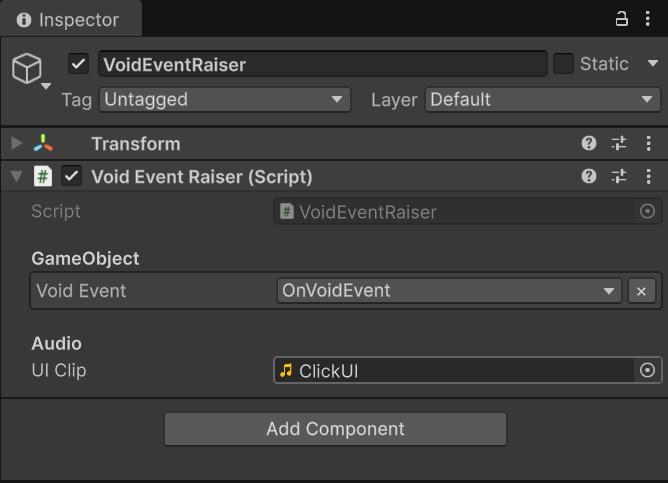
Configuration:
-
GameObject Section:
Void Eventfield uses[GameEventDropdown]attribute- Set to
OnVoidEventasset
-
Audio Section:
UI Clipassigned for button click feedback
The script simply calls voidEvent.Raise() when the button triggers it—no knowledge of who listens.
Receiver Binding (Behavior Configuration)
This is where the decoupling magic happens! The connection between event and callback is configured entirely in the Editor.
How to Configure:
- In the Game Event Editor window, find
OnVoidEventin the event list - Look at the Behavior column on the right
- Click the green (void) icon to open the Behavior Window
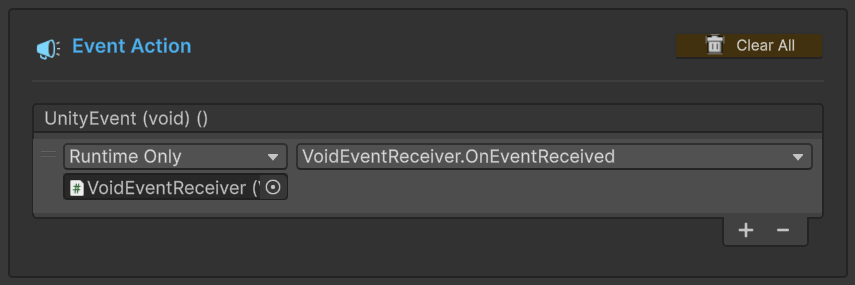
Configuration Details:
Event Action Section:
- Mode:
Runtime Only(executes at runtime, not in Editor) - Target Object:
VoidEventReceiverGameObject - Method:
VoidEventReceiver.OnEventReceived(void method)
This binding tells the GameEventManager: "When OnVoidEvent.Raise() is called, automatically invoke VoidEventReceiver.OnEventReceived()"
- ✅ No code references needed between Raiser and Receiver
- ✅ Easy to add/remove listeners without touching scripts
- ✅ Clear visual overview of event → callback relationships
- ✅ Runtime-only mode prevents accidental Editor execution
💻 Code Breakdown
📤 VoidEventRaiser.cs (Event Sender)
using TinyGiants.GameEventSystem.Runtime;
using UnityEngine;

public class VoidEventRaiser : MonoBehaviour
{
    [Header("GameObject")]
    [GameEventDropdown] public GameEvent voidEvent;

    [Header("Audio")]
    [SerializeField] private AudioClip UIClip;

    private AudioSource _audioSource;

    private void Start()
    {
        _audioSource = gameObject.AddComponent<AudioSource>();
    }

    /// <summary>
    /// [Input Trigger]
    /// This method is called by the Button's OnClick() event (configured in Inspector).
    /// It broadcasts the event signal without knowing who is listening.
    /// </summary>
    public void RaiseBasicEvent()
    {
        if (UIClip) _audioSource.PlayOneShot(UIClip);

        if (voidEvent == null)
        {
            Debug.LogWarning("[VoidEvent] No GameEvent assigned on VoidEventRaiser.");
            return;
        }

        voidEvent.Raise();
        Debug.Log("[VoidEvent] Raise() called on GameEvent.");
    }
}
Key Points:
- 🎯
[GameEventDropdown]- Provides a dropdown to select events in Inspector - 🔊 Audio Feedback - Plays sound before raising the event
- 📢
voidEvent.Raise()- Single line broadcasts to all listeners - 🔇 Zero coupling - No references to VoidEventReceiver or the cube
📥 VoidEventReceiver.cs (Event Listener)
using UnityEngine;

public class VoidEventReceiver : MonoBehaviour
{
    [SerializeField] private Rigidbody targetRigidbody;

    private float jumpForce = 5.0f;
    private float horizontalRandomness = 1.0f;
    private float spinStrength = 5.0f;

    /// <summary>
    /// [Event Callback]
    /// This method is NOT called by VoidEventRaiser directly.
    /// It is bound to 'OnVoidEvent' via the Game Event Editor's Behavior Window.
    ///
    /// Effect: Resets vertical velocity, then applies jump + random drift + spin.
    /// </summary>
    public void OnEventReceived()
    {
        Debug.Log("[VoidEvent] OnEventReceived() called on GameEvent.");

        if (targetRigidbody != null)
        {
            // Reset vertical velocity for consistent jump height
            Vector3 currentVel;
#if UNITY_6000_0_OR_NEWER
            currentVel = targetRigidbody.linearVelocity;
#else
            currentVel = targetRigidbody.velocity;
#endif
            currentVel.y = 0;

#if UNITY_6000_0_OR_NEWER
            targetRigidbody.linearVelocity = currentVel;
#else
            targetRigidbody.velocity = currentVel;
#endif

            // Apply jump with random horizontal drift
            Vector2 randomCircle = Random.insideUnitCircle * horizontalRandomness;
            Vector3 sideForce = new Vector3(randomCircle.x, 0, randomCircle.y);
            Vector3 finalForce = (Vector3.up * jumpForce) + sideForce;
            targetRigidbody.AddForce(finalForce, ForceMode.Impulse);

            // Apply random spin
            Vector3 randomTorque = Random.insideUnitSphere * spinStrength;
            targetRigidbody.AddTorque(randomTorque, ForceMode.Impulse);
        }
        else
        {
            Debug.LogWarning("VoidEventReceiver: Please assign targetRigidbody in Inspector!");
        }
    }
}
Key Points:
- 🎲 Velocity Reset - Ensures consistent jump height by zeroing Y velocity first
- 🎯 Physics Response - Combines upward impulse + random horizontal drift + random torque
- 🔇 Zero coupling - No references to VoidEventRaiser or Button
- 🔄 Unity Version Compatibility - Handles both legacy and Unity 6's physics API
🔑 Key Takeaways
| Concept | Implementation |
|---|---|
| 🎯 Decoupling | Raiser and Receiver never reference each other |
| 📡 Broadcasting | Single Raise() call notifies all listeners |
| 🎨 Visual Binding | Event callbacks configured in Behavior Window, not in code |
| 🔗 Layer Separation | UI → Logic (Raiser) → Event System → Logic (Receiver) → Visual |
| 🔄 Scalability | Add more receivers without modifying sender code |
This demonstrates the classic Observer Pattern, where subjects (events) notify observers (listeners) without tight coupling. The Button only knows about VoidEventRaiser, VoidEventRaiser only knows about the GameEvent, and VoidEventReceiver only knows about the GameEvent through Editor binding—perfect decoupling!
🎯 What's Next?
Now that you understand parameterless events, let's explore how to pass data between systems.
Next Chapter: Learn how to send parameters with events in 02 Basic Types Event
📚 Related Documentation
- Game Event Editor - Detailed guide to event configuration
- Game Event Behavior - How to configure event callbacks
- Raising Events - Runtime API for triggering events
- Listening Strategies - Different ways to respond to events