02 Basic Types Event: Passing Data with Events
📋 Overview
While void events are great for simple signals, most games need to pass data: "How much damage?", "Which item?", "Where to spawn?". This demo showcases the Generic Event System, which allows you to pass standard C# and Unity types as event parameters without writing custom event classes.
- How to create generic events for different data types
- How the system auto-generates type-safe event classes
- How to raise and receive events with parameters
- Type safety enforcement in the Editor
🎬 Demo Scene
Assets/TinyGiants/GameEventSystem/Demo/02_BasicTypesEvent/02_BasicTypesEvent.unity
Scene Composition
UI Layer (Canvas):
- 🎮 Four Buttons - Located at the bottom of the screen
- "Raise (String)" → Triggers
BasicTypesEventRaiser.RaiseString() - "Raise (Vector3)" → Triggers
BasicTypesEventRaiser.RaiseVector3() - "Raise (GameObject)" → Triggers
BasicTypesEventRaiser.RaiseGameObject() - "Raise (Material)" → Triggers
BasicTypesEventRaiser.RaiseMaterial()
- "Raise (String)" → Triggers
Game Logic Layer (Demo Scripts):
-
📤 BasicTypesEventRaiser - GameObject with the raiser script
- Holds references to 4 different generic events:
GameEvent<string>,GameEvent<Vector3>,GameEvent<GameObject>,GameEvent<Material> - Each button triggers a different raise method with specific data
- Holds references to 4 different generic events:
-
📥 BasicTypesEventReceiver - GameObject with the receiver script
- Listens to all 4 events through visual binding in Game Event Editor
- References various scene objects to apply event data
Visual Feedback Layer (Demo Objects):
- 📝 HoloDisplay - TextMeshPro object displaying received string messages
- 🎲 Cube - 3D object that moves when Vector3 event fires and changes color when Material event fires
- 📍 TargetPosition - Transform marking the spawn location for GameObject events
- 🏠 Plane - Ground surface for visual context
🎮 How to Interact
Step 1: Enter Play Mode
Press the Play button in Unity.
Step 2: Test Each Event Type
Click "Raise (String)":
- 📝 The HoloDisplay text updates with "Hello World [count]"
- 🔢 Counter increments with each click
- 📊 Console logs:
[Sender] Raised String Event→[Receiver] String Event Processed
Click "Raise (Vector3)":
- 🎲 The blue cube teleports to a random position
- 📊 Position is randomized within range (-2 to 2, 0 to 3, 0)
- 📝 Console shows the exact coordinates sent and received
Click "Raise (GameObject)":
- 🎁 A random prefab (Cube or Sphere) spawns at TargetPosition
- 🔄 Previous spawn is destroyed before creating new one
- 📝 Console logs which prefab was instantiated
Click "Raise (Material)":
- 🎨 The cube changes to a random color (Red/Green/Blue/Yellow)
- ✨ Material change is instant
- 📝 Console logs the material name applied
🏗️ Scene Architecture
Event Definitions
Open the Game Event Editor window to see the 4 pre-configured events:
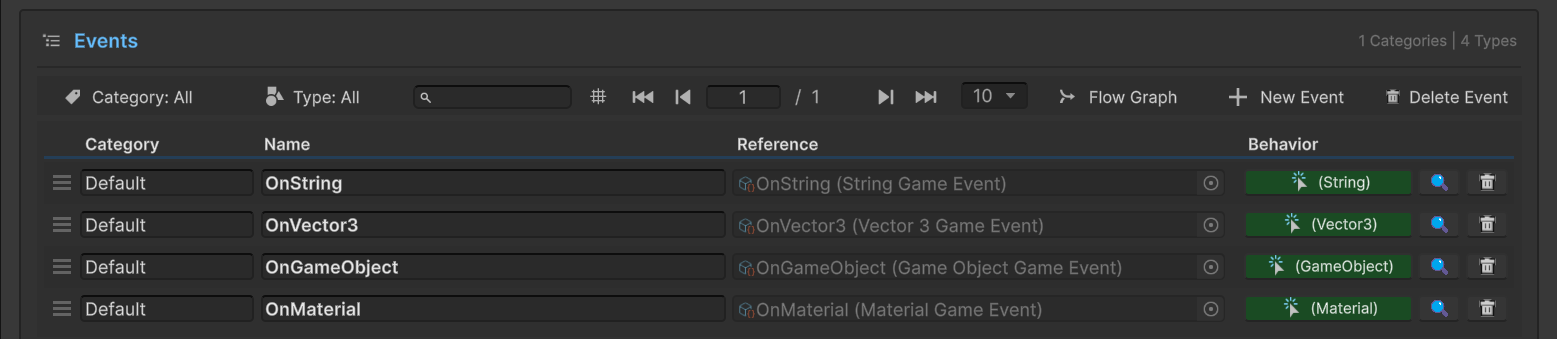
Events in Database:
| Event Name | Type | Purpose |
|---|---|---|
OnString | GameEvent<string> | Update text displays |
OnVector3 | GameEvent<Vector3> | Send position/movement data |
OnGameObject | GameEvent<GameObject> | Pass prefab references for spawning |
OnMaterial | GameEvent<Material> | Send material assets for visual changes |
Notice the Behavior Column: Each event shows a colored type indicator (e.g., (String), (Vector3)) in the Behavior column. Clicking these icons opens the Behavior Window where you can configure callback bindings—the same visual binding system you saw in the previous demo.
You don't need to manually create StringGameEvent or Vector3GameEvent classes. The system automatically generates concrete types like GameEvent<T> when you create a new event in the Editor.
Sender Setup (BasicTypesEventRaiser)
Select the BasicTypesEventRaiser GameObject in the Hierarchy:
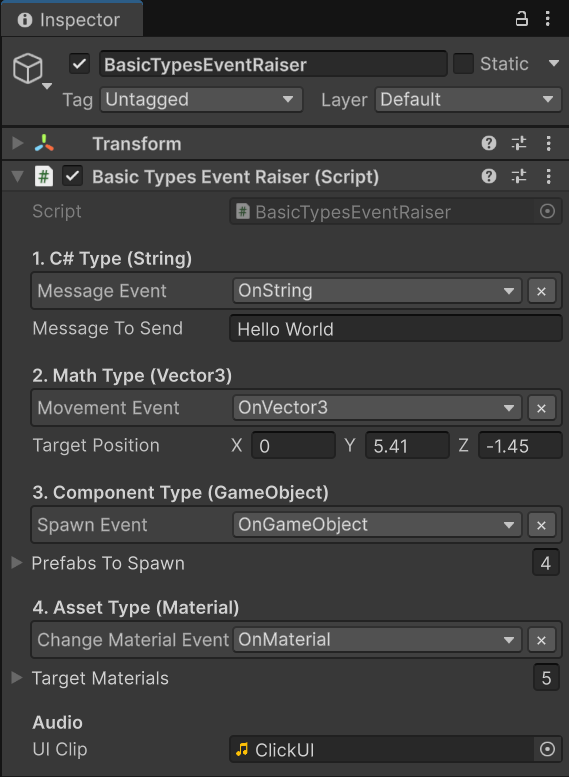
Configuration Details:
1. C# Type (String)
Message Event→OnString(type-filtered dropdown)Message To Send→ "Hello World" (template text)
2. Math Type (Vector3)
Movement Event→OnVector3Target Position→ (0, 5.41, -1.45) (reference position)
3. Component Type (GameObject)
Spawn Event→OnGameObjectPrefabs To Spawn→ List of 4 primitive prefabs (Cube, Sphere, etc.)
4. Asset Type (Material)
Change Material Event→OnMaterialTarget Materials→ List of 5 colored materials
Type Safety in Action:
- The
[GameEventDropdown]attribute automatically filters events by type - You can only assign
GameEvent<string>to the "Message Event" slot - Attempting to assign a
GameEvent<Vector3>to the string slot is prevented by the Editor - This compile-time type safety prevents runtime errors
Receiver Setup (BasicTypesEventReceiver)
Select the BasicTypesEventReceiver GameObject in the Hierarchy to see its scene references:
Scene References:
Log Text→ HoloDisplay (TextMeshPro component)Moving Cube→ Cube (Transform component)Changing Cube Renderer→ Cube (MeshRenderer component)Spawn Point→ TargetPosition (Transform component)
Behavior Binding:
Each of the 4 events is bound to a corresponding receiver method through the Behavior Window in the Game Event Editor (similar to what you configured in the Void Event demo):
| Event | Bound Method | Signature |
|---|---|---|
OnString | OnMessageReceived | void (string msg) |
OnVector3 | OnMoveReceived | void (Vector3 pos) |
OnGameObject | OnSpawnReceived | void (GameObject prefab) |
OnMaterial | OnMaterialReceived | void (Material mat) |
The Behavior Window's method dropdown automatically filters methods based on the event's parameter type. For GameEvent<string>, you'll only see methods with a (string) parameter. This ensures type safety at configuration time!
💻 Code Breakdown
📤 BasicTypesEventRaiser.cs (Sender)
using UnityEngine;
using TinyGiants.GameEventSystem.Runtime;
using System.Collections.Generic;

public class BasicTypesEventRaiser : MonoBehaviour
{
    [Header("1. C# Type (String)")]
    [GameEventDropdown] public GameEvent<string> messageEvent;
    public string messageToSend = "Hello World";

    [Header("2. Math Type (Vector3)")]
    [GameEventDropdown] public GameEvent<Vector3> movementEvent;
    public Vector3 targetPosition = new Vector3(0, 2, 0);

    [Header("3. Component Type (GameObject)")]
    [GameEventDropdown] public GameEvent<GameObject> spawnEvent;
    public List<GameObject> prefabsToSpawn = new List<GameObject>();

    [Header("4. Asset Type (Material)")]
    [GameEventDropdown] public GameEvent<Material> changeMaterialEvent;
    public List<Material> targetMaterials = new List<Material>();

    private int _count;
    private AudioSource _audioSource;

    /// <summary>
    /// Raises a GameEvent<string> with dynamic text content.
    /// The receiver must have signature: void MethodName(string value)
    /// </summary>
    public void RaiseString()
    {
        if (messageEvent == null)
        {
            Debug.LogWarning("[MessageEvent] No GameEvent assigned.");
            return;
        }

        // Pass dynamic string with incremented counter
        messageEvent.Raise($"{messageToSend} [{_count++}]");
        Debug.Log($"[Sender] Raised String Event: {messageEvent.name}");
    }

    /// <summary>
    /// Raises a GameEvent<Vector3> with random position data.
    /// Useful for movement, directions, or physics forces.
    /// </summary>
    public void RaiseVector3()
    {
        Vector3 randomPos = new Vector3(
            Random.Range(-2f, 2f),
            Random.Range(0f, 3f),
            0
        );

        if (movementEvent != null)
        {
            movementEvent.Raise(randomPos);
            Debug.Log($"[Sender] Raised Vector3 Event: {randomPos}");
        }
    }

    /// <summary>
    /// Raises a GameEvent<GameObject> with a prefab reference.
    /// Demonstrates passing Unity Object references safely.
    /// </summary>
    public void RaiseGameObject()
    {
        if (spawnEvent != null && prefabsToSpawn != null && prefabsToSpawn.Count > 0)
        {
            GameObject randomPrefab = prefabsToSpawn[Random.Range(0, prefabsToSpawn.Count)];
            spawnEvent.Raise(randomPrefab);
            Debug.Log($"[Sender] Raised GameObject Event. Spawning: {randomPrefab?.name ?? "null"}");
        }
        else
        {
            Debug.LogWarning("[Sender] RaiseGameObject failed: Event or prefab list is null/empty.");
        }
    }

    /// <summary>
    /// Raises a GameEvent<Material> with a material asset reference.
    /// Perfect for runtime visual customization.
    /// </summary>
    public void RaiseMaterial()
    {
        if (changeMaterialEvent != null && targetMaterials != null && targetMaterials.Count > 0)
        {
            Material randomMaterial = targetMaterials[Random.Range(0, targetMaterials.Count)];
            changeMaterialEvent.Raise(randomMaterial);
            Debug.Log($"[Sender] Raised Material Event. Material: {randomMaterial?.name ?? "null"}");
        }
        else
        {
            Debug.LogWarning("[Sender] RaiseMaterial failed: Event or material list is null/empty.");
        }
    }
}
Key Points:
- 🎯 Generic Syntax -
GameEvent<T>automatically handles different types - 🔒 Type Safety - Each event can only accept its declared parameter type
- 📦 Data Passing -
.Raise(value)method accepts the typed parameter - 🔇 Decoupling - Sender has no knowledge of who or what responds
📥 BasicTypesEventReceiver.cs (Listener)
using UnityEngine;
using TMPro;

public class BasicTypesEventReceiver : MonoBehaviour
{
    [SerializeField] private TextMeshPro logText;
    [SerializeField] private Transform movingCube;
    [SerializeField] private MeshRenderer changingCubeRenderer;
    [SerializeField] private Transform spawnPoint;

    /// <summary>
    /// Bound to 'OnString' event via Game Event Editor's Behavior Window.
    /// Signature: void (string)
    /// </summary>
    public void OnMessageReceived(string msg)
    {
        if (logText != null)
            logText.text = $"Received String: \n<color=yellow>{msg}</color>";

        Debug.Log($"[Receiver] String Event Processed: {msg}");
    }

    /// <summary>
    /// Bound to 'OnVector3' event via Game Event Editor's Behavior Window.
    /// Signature: void (Vector3)
    /// </summary>
    public void OnMoveReceived(Vector3 pos)
    {
        if (movingCube != null)
            movingCube.localPosition = pos;

        Debug.Log($"[Receiver] Moving Cube to: {pos}");
    }

    /// <summary>
    /// Bound to 'OnGameObject' event via Game Event Editor's Behavior Window.
    /// Signature: void (GameObject)
    /// </summary>
    public void OnSpawnReceived(GameObject prefab)
    {
        if (prefab != null && spawnPoint != null)
        {
            // Clear previous spawn
            if (spawnPoint.childCount > 0)
            {
                foreach(Transform child in spawnPoint)
                    Destroy(child.gameObject);
            }

            Instantiate(prefab, spawnPoint.position, Quaternion.identity, spawnPoint);
            Debug.Log($"[Receiver] Spawned Instance of: {prefab.name}");
        }
    }

    /// <summary>
    /// Bound to 'OnMaterial' event via Game Event Editor's Behavior Window.
    /// Signature: void (Material)
    /// </summary>
    public void OnMaterialReceived(Material mat)
    {
        if (changingCubeRenderer != null && mat != null)
        {
            changingCubeRenderer.material = mat;
            Debug.Log($"[Receiver] Material Changed to: {mat.name}");
        }
    }
}
Key Points:
- 🎯 Signature Matching - Each method parameter must match the event type exactly
- 🔒 Type Safety - Editor's Behavior Window only shows compatible methods
- 🎨 Direct Usage - Received data can be used immediately (no casting needed)
- 🔇 Decoupling - Receiver has no knowledge of the sender
🔑 Key Takeaways
| Concept | Implementation |
|---|---|
| 🎯 Generic Events | GameEvent<T> supports any serializable type |
| 🔒 Type Safety | Editor enforces matching types at configuration time |
| 🏭 Auto-Generation | No manual event class creation needed |
| 📦 Data Passing | .Raise(value) passes typed parameters seamlessly |
| 🔄 Flexibility | One system handles strings, vectors, objects, materials, and more |
The generic system eliminates boilerplate code. Instead of creating StringGameEvent, Vector3GameEvent, etc., you simply use GameEvent<T> with any type. The system handles code generation and type enforcement automatically!
🎯 What's Next?
You've learned how to pass built-in types. But what about your own custom classes?
Next Chapter: Create events with custom data types in 03 Custom Type Event
📚 Related Documentation
- Game Event Creator - How to create generic events in the Editor
- Game Event Behavior - Detailed guide to callback binding
- Raising Events - API reference for
.Raise()methods - API Reference - Complete generic event API